

The .gov means it's official.
Federal government websites often end in .gov or .mil. Before sharing sensitive information, make sure you're on a federal government site.

The site is secure.
The https:// ensures that you are connecting to the official website and that any information you provide is encrypted and transmitted securely.

Formulas Online and COLAs Online: How to Use One-time Verification Code
When you enter your user name/email address and password into Formulas Online and COLAs Online, we will require you an one-time verification code that you will need to enter to complete your login.
There are two ways you can receive the one-time verification code when signing in to Formulas and COLAs Online:
- Via email OR
- Via authenticator app
The use of this one-time verification code is a multi-factor authentication (MFA) mechanism to verify your identity by requiring you to provide more than just a username and password.
This login process provides an increased level of security when accessing your Formulas Online and COLAs Online account(s).
- See Additional Information About One-time verification code for answers to common questions about using the one-time verification code when logging in to Formulas Online / COLAs Online.
Use of one-time verification code
1. Navigate to the Formulas Online / COLAs Online Sign In page (my.ttb.gov)
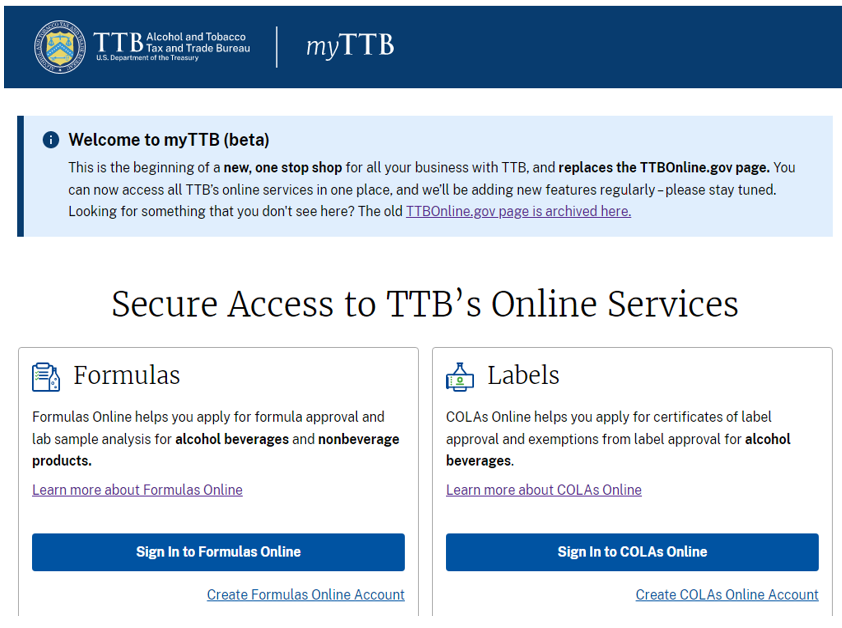
Figure 1- my.ttb.gov page
2. Enter your user login credentials.
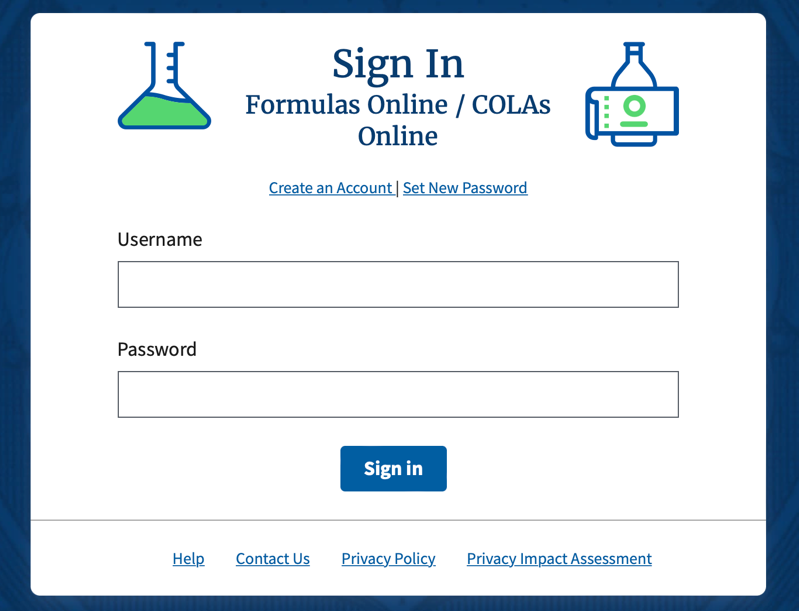
Figure 2 – Formulas Online / COLAs Online Sign In screen
3. After successful validation of your login credentials, you will now have two methods to choose from on verifying the one-time verification code:
- Email Verification Code (code emailed to you) OR
- Authenticator App (code provided by your authenticator app on your device such as a computer or mobile device (phone or tablet))
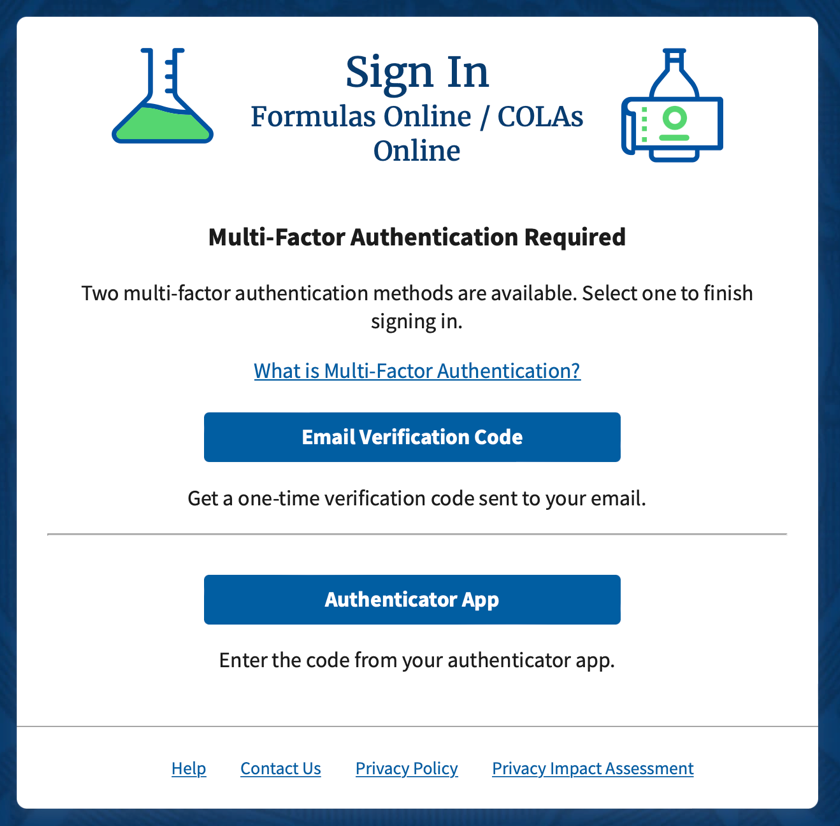
Figure 3 – Choose multi-factor authentication method
4. Select the Email Verification Code button to receive the One-time Verification Code sent to your email address.
Go to step 4a.
OR
5. Select the Authenticator App button to use a Verification Code generated by your chosen authenticator app on your device such as a computer or mobile device (phone or tablet).
Go to step 5a.
- NOTE: If you have never used an authenticator app with Formulas Online / COLAs Online before, you will be prompted through the set up and registration process when you use this method for the very first time.
Sign In using Email Verification Code
4a. After selecting the Email Verification Code button, a message will display on the screen informing you that a verification code has been sent to your email address.
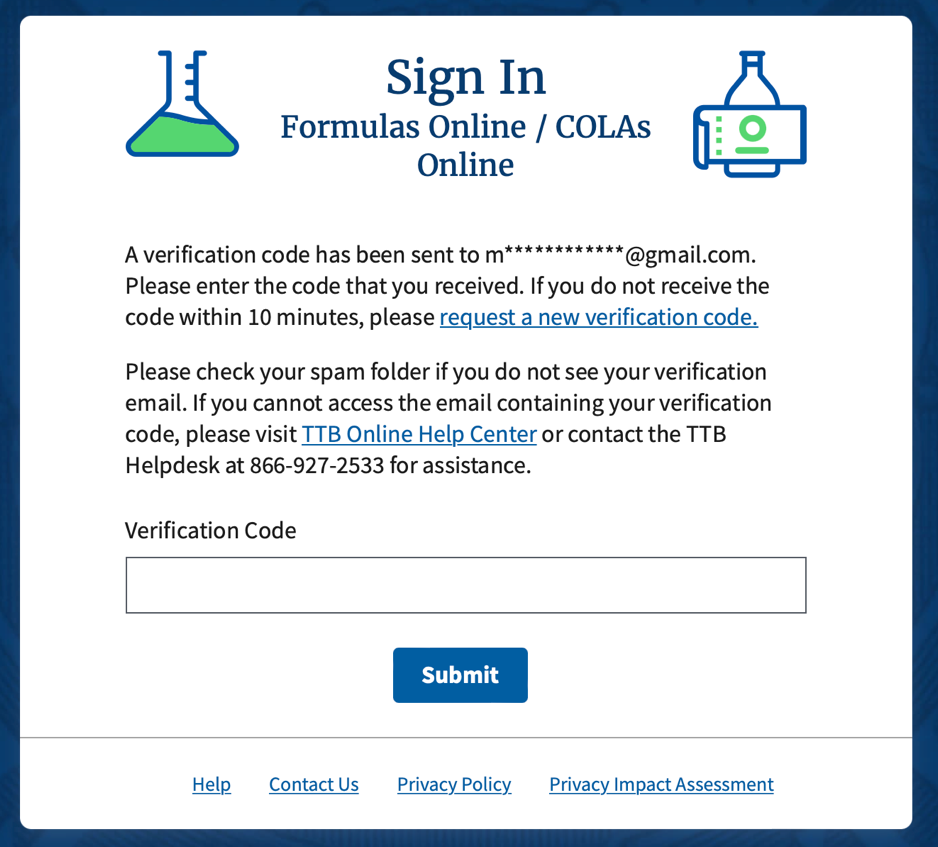
Figure 4 – One-time Verification Code sent to your email message
4b. The code will be valid for 30 minutes and will be sent to the email address listed in the Login Information section of your user profile of your account.
4c. If you are unsure which email address is listed, see Formulas Online and COLAs Online: How to Identify Email Associated With Account.
4d. Open your email and find the TTB email (example email message shown below):
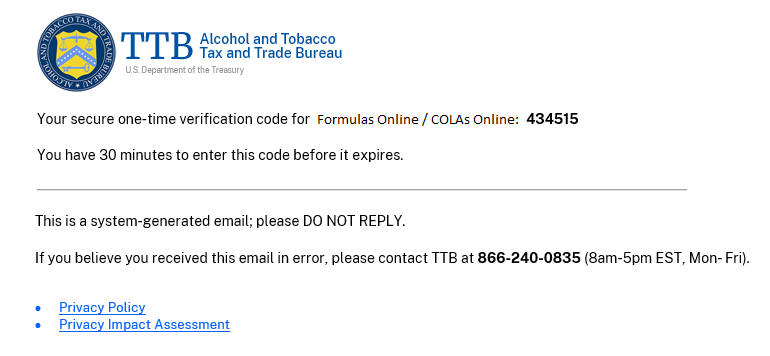
Figure 5 - Example TTB email for One-time Verification Code
4e. Enter the code you receive via email in the One-time Verification Code
If the code has expired or is entered incorrectly 3 times, you can select request a new verification code link.
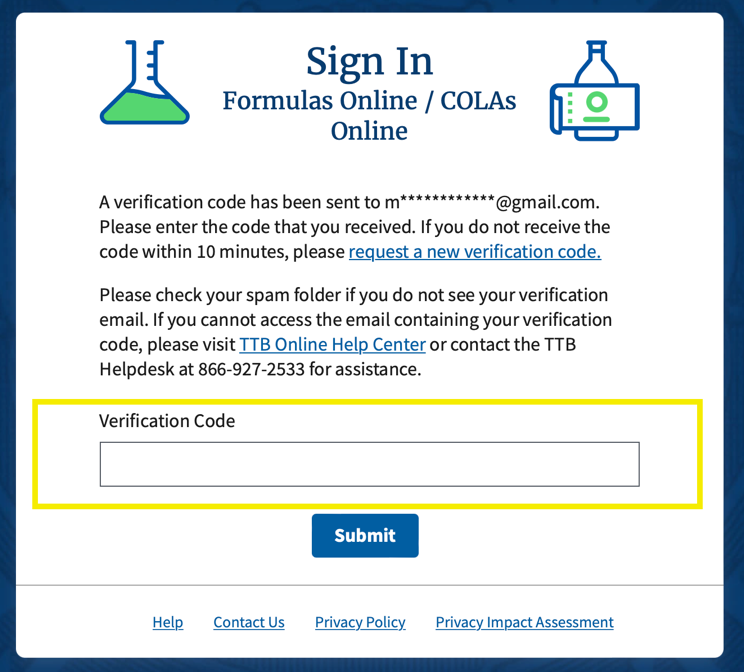
Figure 6 -Enter One-time Verification Code from the email
4f. Your Formulas Online / COLAs Online home screen should open and you are now signed-in to your account.
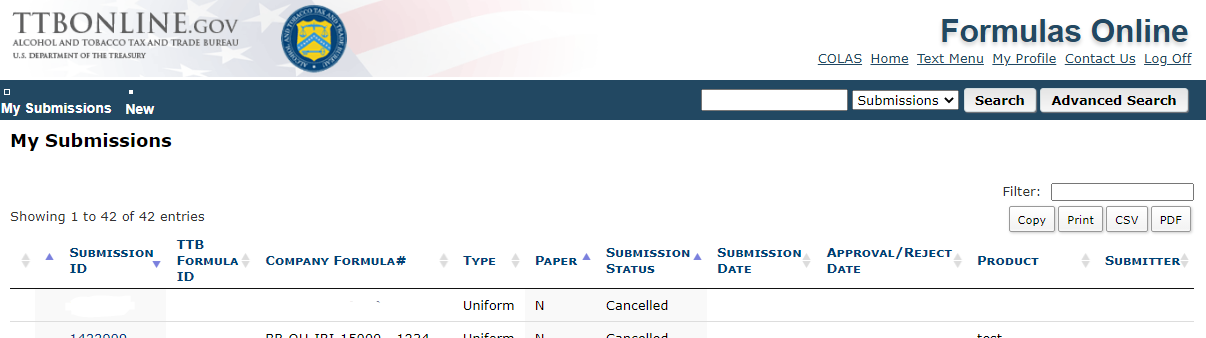
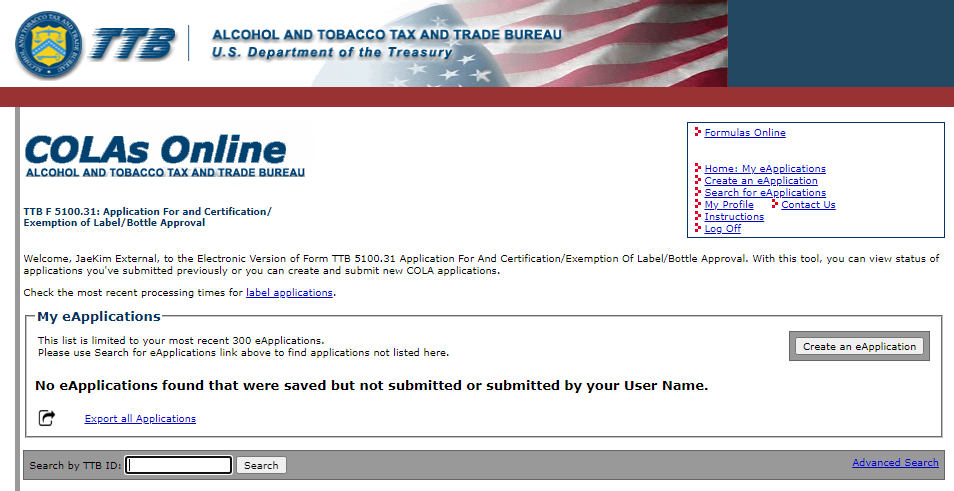
Figure 7 – Formulas Online / COLAs Online after Sign-in
Sign in using Authenticator App
5a. Authenticator app is downloaded to your device and generate secure, six-digit codes you use to sign in to your account.
While authenticator app is not protected if your device is lost or stolen, this method offers more security than phone calls or text messaging against phishing, hacking, or interception.
5b. If you choose this secure option, follow these steps to download and install one of the supported applications and configure it to work with myTTB.
- Choose a device, such as a computer or mobile device (phone or tablet), on which you can install the authenticator app.
- Download and install an authenticator app to your device. Some popular options include:
- Android options: Google Authenticator, Authy, LastPass, 1Password.
- iOS options: Google Authenticator, Authy, LastPass, 1Password.
- Windows apps: 1Password, OTP Manager.
- Mac apps: 1Password, OTP Manager.
- Chrome extensions: Authenticator.
- Open the authenticator app from your device
5c. After selecting the Authenticator App button from the Sign In screen, if you have not setup an authenticator app with Formulas Online / COLAs Online, you will be prompted to complete the set up and registration of your authenticator app to your Username of your account.
See step 5b to add authenticator app to your device first.
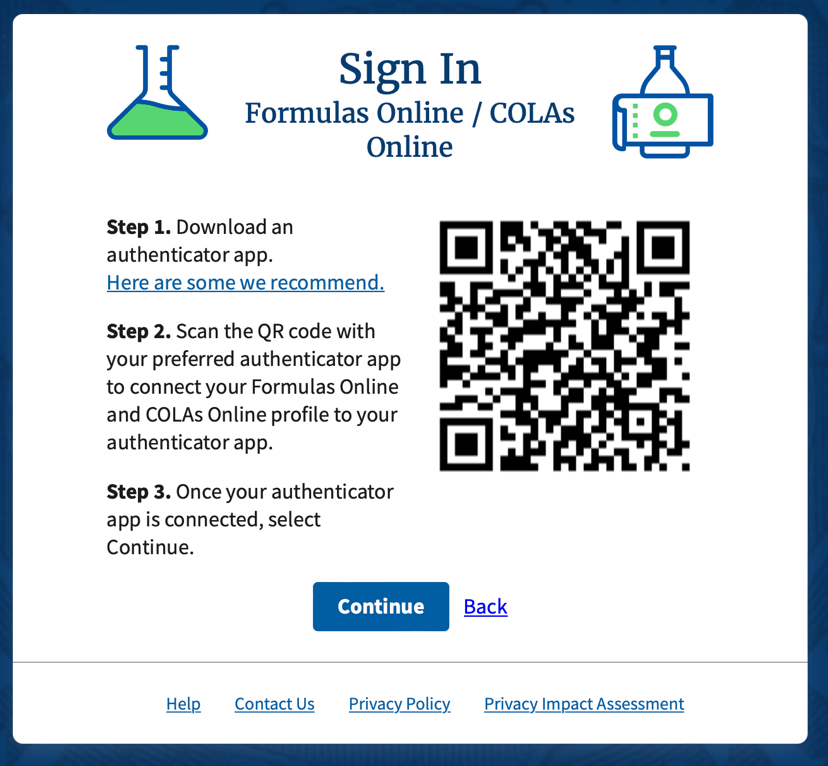
Figure 8 - Example QR Code for Authenticator App registration
NOTE: Once you complete this step, your Username will be registered with your chosen authenticator app on your device such as a computer or mobile device (phone or tablet).
With your chosen authenticator now registered with myTTB, you will no longer see this step/screen going forward next time you sign in to Formulas Online / COLAs Online.
5d. With your authenticator app opened, follow the instructions from the app to scan the QR code to associate your authentication app with your Username of Formulas Online / COLAs Online account.
5e. After your authenticator app registered with myTTB, it will generate a 6-digit code every 30 seconds. You will now be able to use the Verification Code generated by your authenticator app each time you sign in to Formulas Online / COLAs Online.
5f. Select Continue to complete the set-up process.
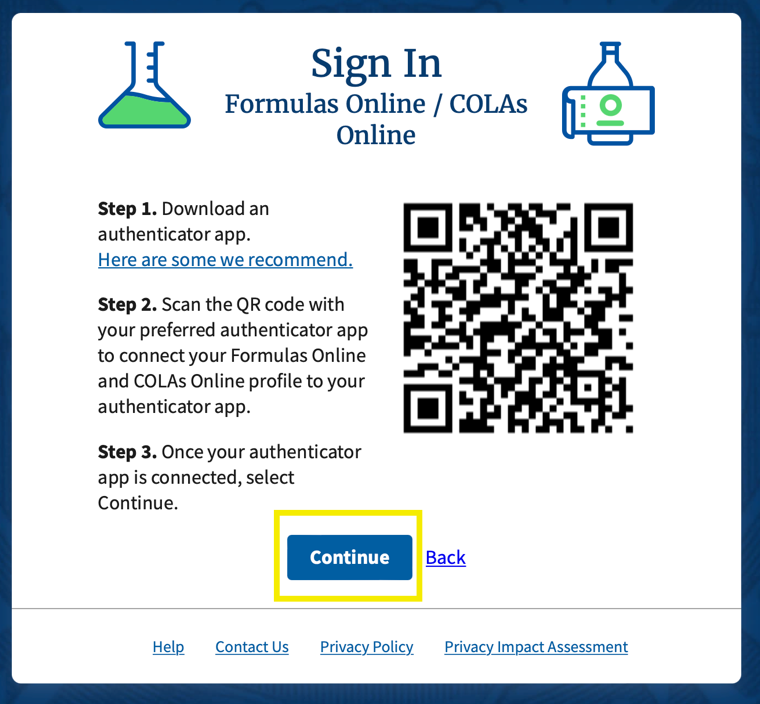
Figure 9 - Select Continue to complete the set-up
5g. Enter the 6-digit code displayed in your authenticator app in to the Verification Code field provided and then select the Submit
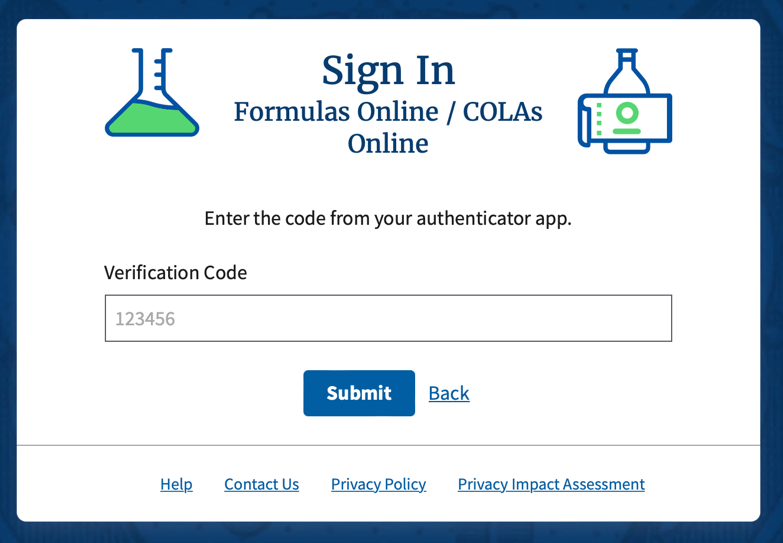
Figure 10- Enter Verification Code from your Authenticator app
- Note: A new code is generated every 30 seconds. Enter your code before the timer reaches zero.
5h. Your Formulas Online / COLAs Online home screen should open and you are now signed-in to your account.
Figure 11 –Formulas Online / COLAs Online after Sign-In
Additional Information About One-time Verification Codes
When it comes to securing online accounts, most of us are familiar with the standard combination of using a username and a unique password. For many years, this was considered a reasonably secure way to limit access to just the authorized users of the account. However, due to normal human behavior, people tend to choose easy to remember passwords or reuse the same passwords at multiple online accounts.
MFA is a mechanism to verify individual’s identity by requiring them to provide more than just a username and password. MFA requires a user to provide two or more of the following:
- Something the user knows – e.g., a password, pass phrase, or PIN
- Something the user has – e.g., a physical token, a phone-based authenticator, or one-time verification code
- Something the user is – e.g., a biometric, such as fingerprint or retina pattern
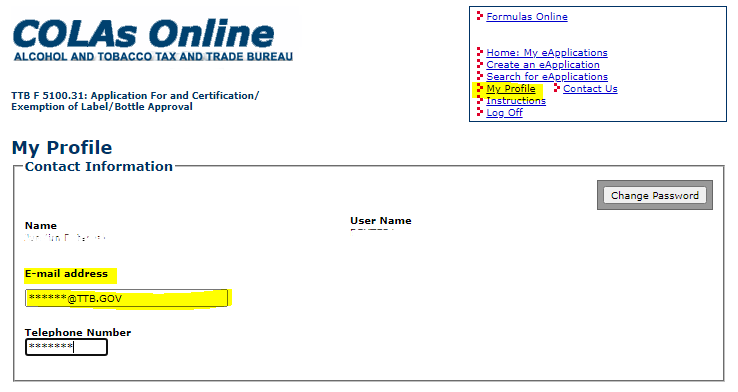
The one-time verification code needed to complete your Formulas Online and COLAs Online account login will be sent to the email displayed in the My Profile section of your account.
- NOTE: For Formulas Online, the one-time verification code is only sent to the email address designated as the PRIMARY.
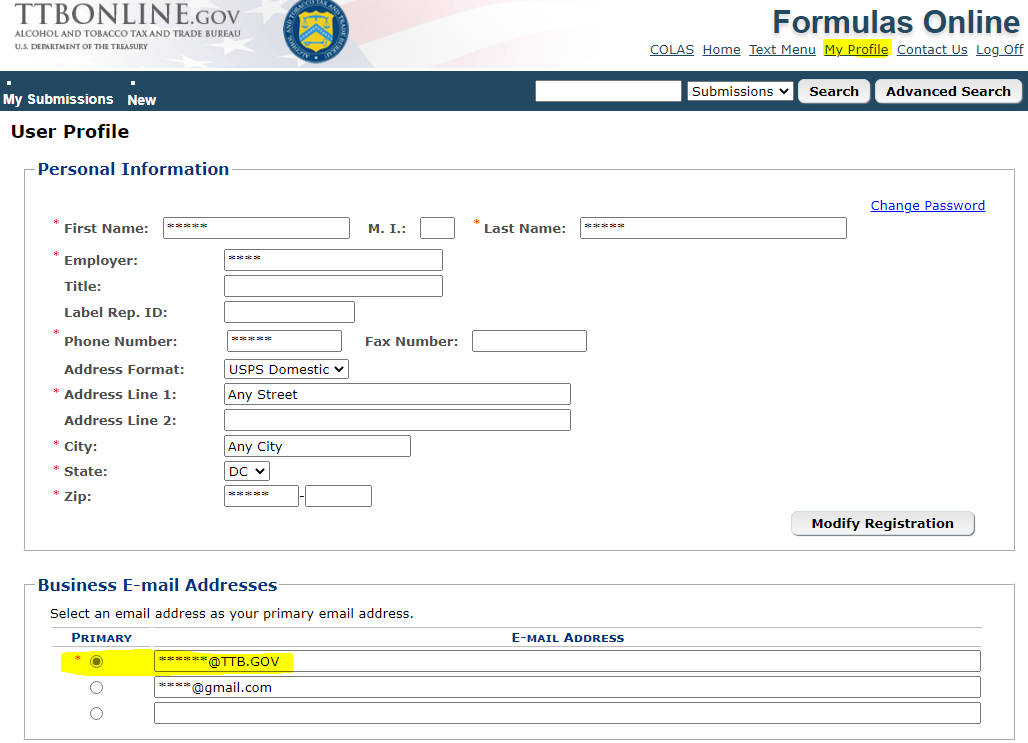
See Formulas Online and COLAs Online: How to Identify Email Associated With Account for more help.
- Please check your email’s Spam or Junk folder
- Add do-not-reply-myttb@ttb.gov to your safe list to prevent future emails forwarded to your Spam or Junk folder.
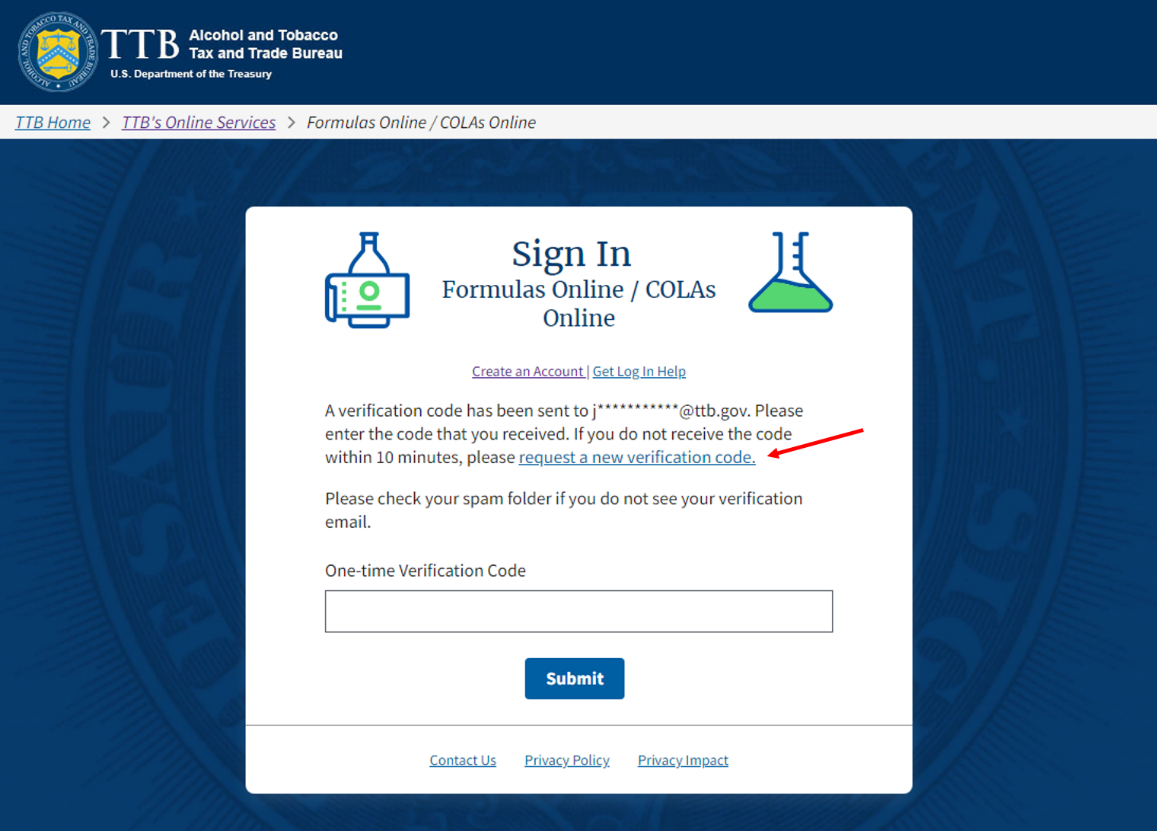
- Request a new verification code using the request a new verification code link (shown below).
- The email address associated with your Formulas Online and COLAs Online accounts can be found under My Profile.
NOTE: For Formulas Online, the one-time verification code is only sent to the email address designated as the PRIMARY.
- You have 30 minutes to enter your code before it expires after the email has been sent.
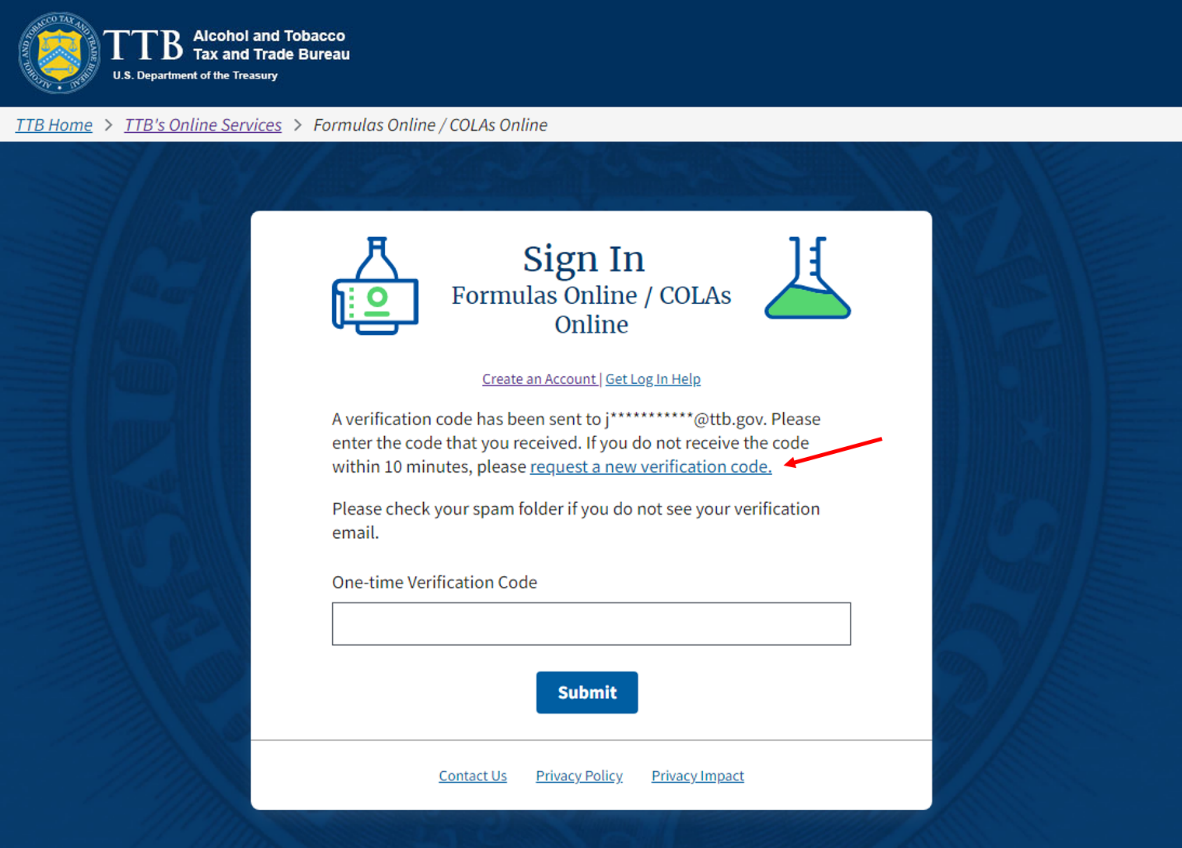
- If the code has expired or is entered incorrectly 3 times you can request a new verification code using the request a new verification code link (shown below).
- Yes, you are required to provide a one-time verification code in order to access your Formulas Online and COLAs Online accounts.
- Anytime you log off from Formulas Online and COLAs Online accounts or close your internet browser, you will be required to provide a new one-time verification code in order to access your Formulas Online and COLAs Online accounts.
- The President’s Executive Order (EO) 14028 on Improving the Nation’s Cybersecurity issued on May 12, 2021, it requires all federal government agencies to employ and fully adopt multi-factor authentication (MFA).
- New login process provides an increased level of security for all industry members when accessing TTB applications.
Last updated: January 8, 2026
Maintained by: National Revenue Center