

The .gov means it's official.
Federal government websites often end in .gov or .mil. Before sharing sensitive information, make sure you're on a federal government site.

The site is secure.
The https:// ensures that you are connecting to the official website and that any information you provide is encrypted and transmitted securely.

Register for a New Formulas Online and/or COLAs Online Account
This page will help you determine if you need to register for a new account, and if so, how to fill out each tab in the registration process. If you just need to know how to fill out a particular tab, use these quick links:
Main Tab | Company Tab | Comments Tab | Docs/Links Tab
- Before you start, please determine if you need to register for a new account or not:
- If you have a Formulas Online OR a COLAs Online account already, there is no need to register for a new account in order to gain access to the other system.
- If you need access to COLAs Online, update your existing Formulas Online registration to request access to COLAs.
- If you need access to Formulas Online, update your existing COLAs online registration to request access to Formulas.
- If you need access to COLAs Online, update your existing Formulas Online registration to request access to COLAs.
- If DON’T have either a Formulas or COLAs Online account (or you had an account in the past that has since been deactivated), continue following the steps below to register for a new account.
- If you do need an account, go to TTB’s Formulas/COLAs Online New User Registration page.
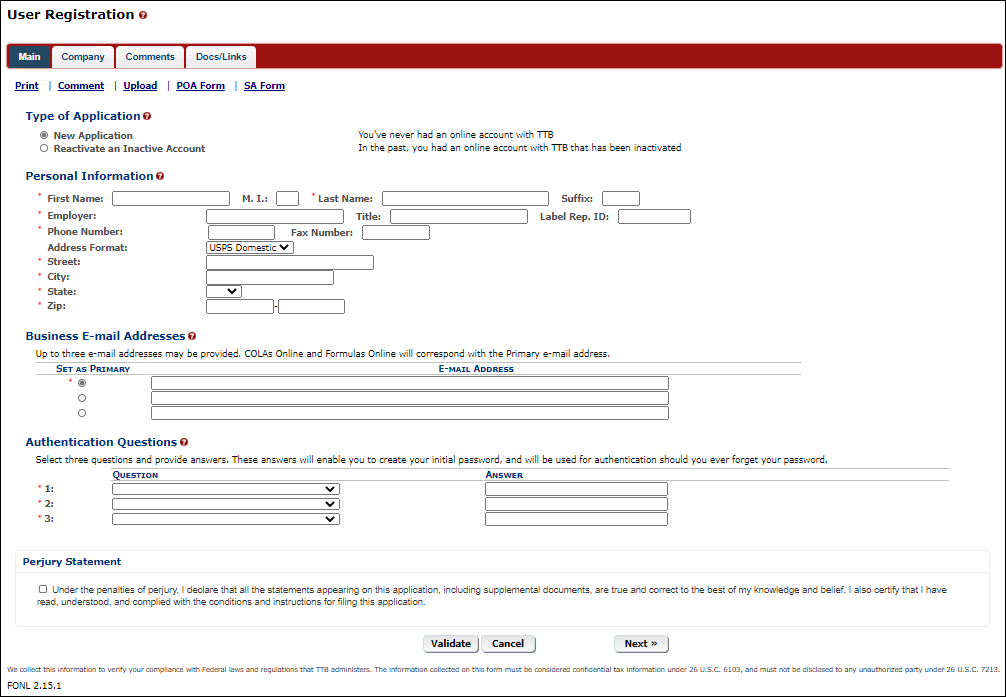
- Fill out the “Main” tab fields (type of application, personal information, email address(es), authentication questions, and perjury statement), then select “Next.”
- Note: You may add up to three valid business email addresses, but then you must select which should be used as the primary contact. Email notification will only be sent to the primary contact email address.
Note: You are not required to complete the Label Rep ID field unless instructed to do so by your company. Only third party filers such as trade associations, law firms, and consultants are required to complete this field.
- Fill out the “Company” tab.
Note: You will need to complete a separate entry for each alcohol beverage permit / nonbeverage product company and for each system that you will need to access. For example, if you need access to both COLAs Online and Formulas Online for two permits/companies, you must complete four entries in the Company Tab:
- Permit/company #1 access to COLAs Online
- Permit/company #1 access to Formulas Online
- Permit/company #2 access to COLAs Online
Permit/company #2 access to Formulas Online.
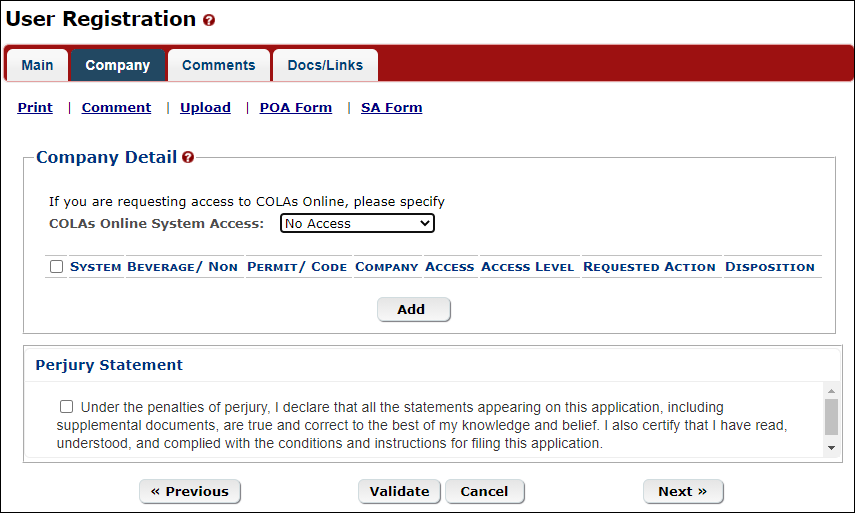
For each COLAs Online entry:
- Under “Company Detail,” select the type of access from the “COLAs Online System Access” drop-down list, then select “Add.” A modal window will open.
- Submitters can both prepare and submit applications; Preparer/Reviewers can only prepare applications (they must be submitted to TTB by someone with the Submitter role).
- You must choose the same role (Submitter or Preparer) for ALL of the COLAs Online entries included in your registration (it is not possible to be a Submitter on one permit and a Preparer on another permit).
- Submitters can both prepare and submit applications; Preparer/Reviewers can only prepare applications (they must be submitted to TTB by someone with the Submitter role).
Important: For the “System Information” section on the “Add Company” modal window that pops up, be sure “System Requested” is “COLAs Online.” If it is not, change it.

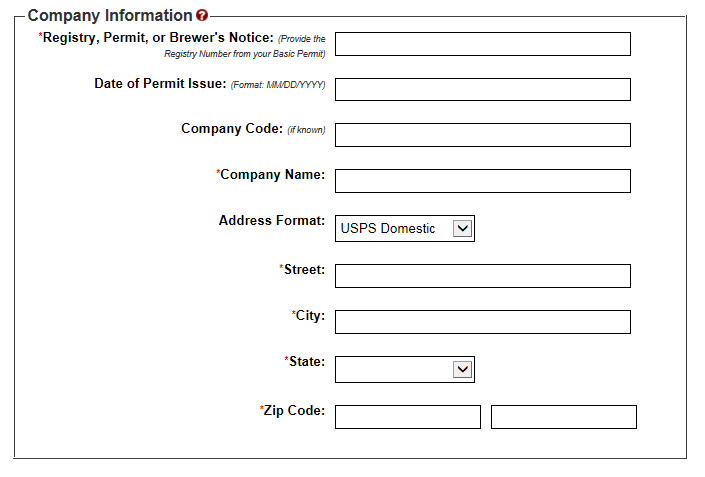
- Fill out the “Company Information” section:
- The “Company Code” field only applies to nonbeverage product companies.
For Address, please enter the premises address from the permit.
- The “Company Code” field only applies to nonbeverage product companies.
- Fill out the “Individual Information” section:
If you are registering as a Submitter, select the appropriate “Signature Authorization” button (this field doesn’t apply to Preparers).

If known, enter the “Title” and “Name of the Company Approval Official” in the available fields.

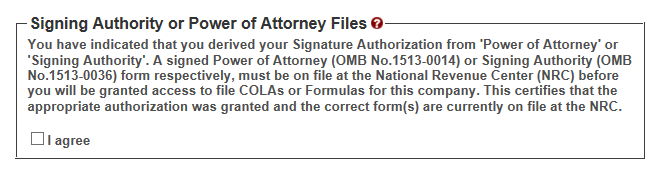
- If you selected “Signing Authority” or “Power of Attorney” for “Signature Authorization,” an additional section will appear:
If you are registering for the first time as a Submitter on behalf of a beverage company, unless you are an owner, you must acknowledge you have a valid Signing Authority or Power of Attorney form on file at TTB’s National Revenue Center for this permit by selecting the “I agree” checkbox. If this is not already on file with us, you must ask an authorized person at the company to file a TTB permit amendment to get one on file for you before proceeding with your registration request.
For each Formulas Online entry:
- Select “Add.” A modal window will open.
- For the “System Information” section:
- Be sure “System Requested” is “Formulas Online.”
- Select “System Access.”
- Submitters can both prepare and submit applications; Preparer/Reviewers can only prepare applications (they must be submitted to TTB by someone with the Submitter role).
You may select a different system access role (Submitter or Preparer) for each permit in your registration if desired.

- Submitters can both prepare and submit applications; Preparer/Reviewers can only prepare applications (they must be submitted to TTB by someone with the Submitter role).
- Be sure “System Requested” is “Formulas Online.”
- Fill out the “Company Information” section:
- The “Company Code” field only applies to nonbeverage product companies.
- The “Registry, Permit, or Brewer’s Notice” and “Date of Permit Issue” fields only apply to alcohol beverage companies.
For Address, please enter the premises address from the permit.
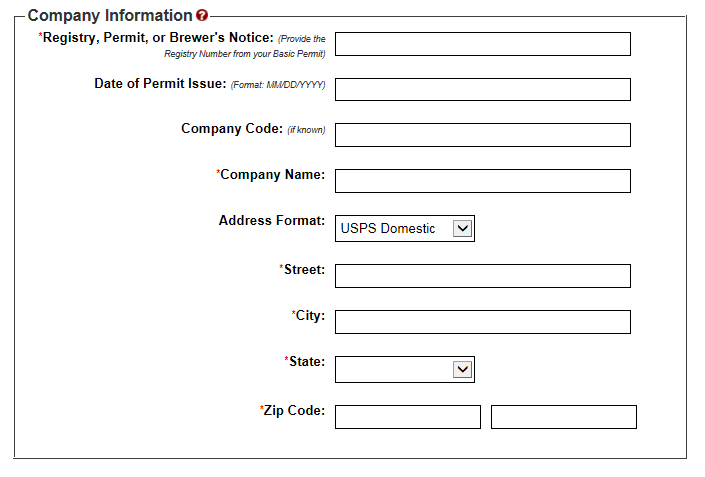
- The “Company Code” field only applies to nonbeverage product companies.
- Fill out the “Individual Information” section.
If you are registering as a Submitter, select the appropriate “Signature Authorization” button (this field doesn’t apply to Preparers).

If known, enter the “Title” and “Name of the Company Approval Official” in the available fields

- If you selected “Signing Authority” or “Power of Attorney” for “Signature Authorization,” an additional section will appear:
If you are registering for the first time as a Submitter on behalf of a beverage company, unless you are an owner, you must acknowledge you have a valid Signing Authority or Power of Attorney form on file at TTB’s National Revenue Center for this permit by selecting the “I agree” checkbox. If this is not already on file with us, you must ask an authorized person at the company to file a TTB permit amendment to get one on file for you before proceeding with your registration request.
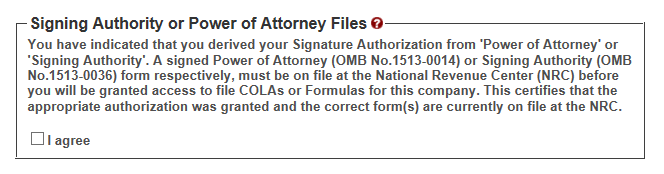
If you are registering for the first time as a Submitter on behalf of a nonbeverage company, unless you are an owner, you need to upload a signed Power of Attorney or Signing Authority form
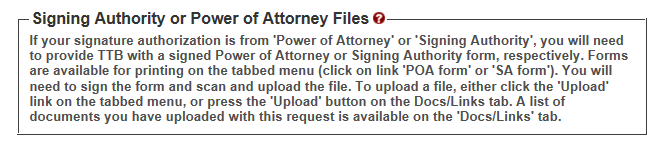
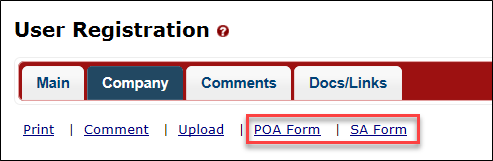
You can download the Power of Attorney form or Signing Authority form from the Action bar (see screen shot below) or use your own form. Completed, signed forms should be scanned and uploaded on the “Docs/Links” tab.
- Select “OK.” The Company modal window will close and the permit/company entry will appear on the main Company tab. Repeat Step 3-4 until all entries have been logged.
Note: You can edit your new entries by selecting the link next to the entry in the “System” column. You can delete any of the new entries at this point by selecting the checkbox to the left of the entry, then selecting “Delete.”
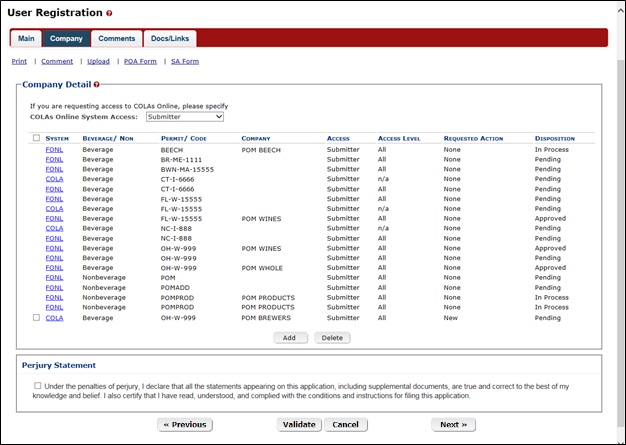
Select “Next” to proceed to the “Comments” tab.
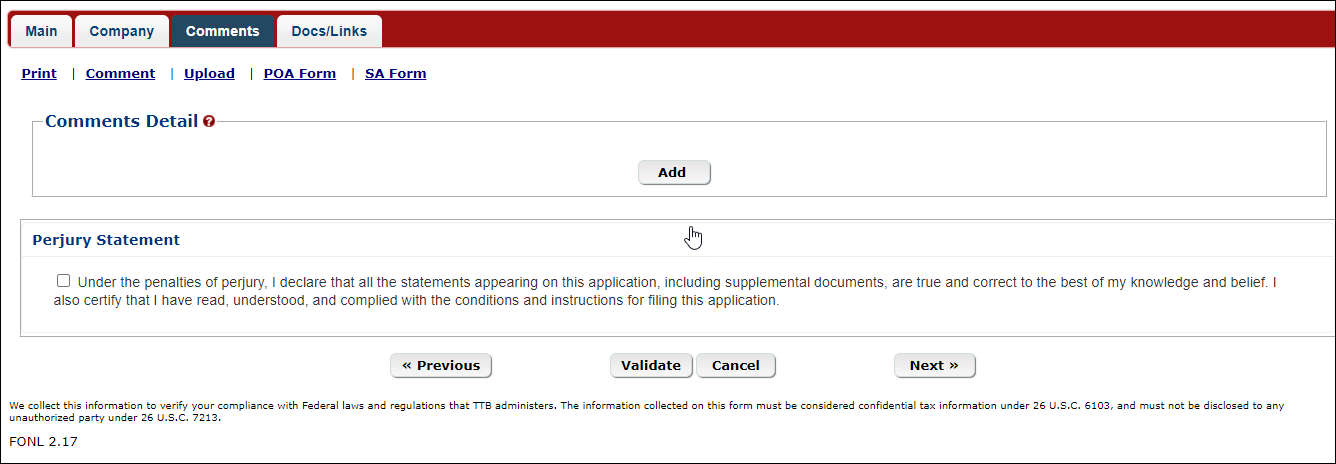
- If you need to communicate anything about your registration changes to TTB (optional):
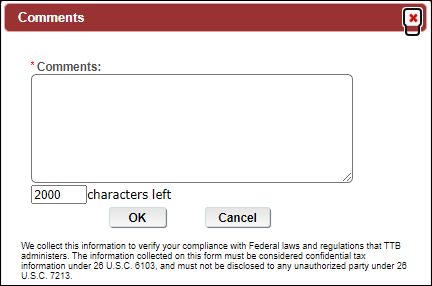
Select “Add” and the Comments modal window will appear. Enter your comments in the available field, then select “OK.”
- Verify that your comment was added on the main Comments tab.
- Notes:
- Select the word “Comment” to edit your comment.
Select the checkbox next to the comment and select the “Delete” button to remove the comment.
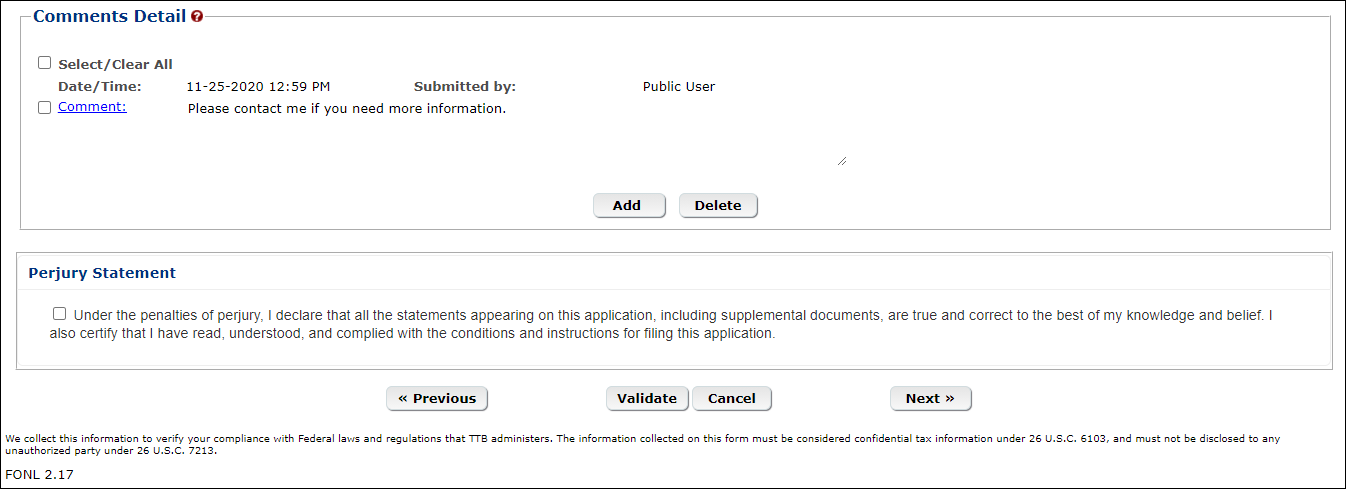
- Select the word “Comment” to edit your comment.
Select “Next” to proceed to the “Docs/Links” tab.
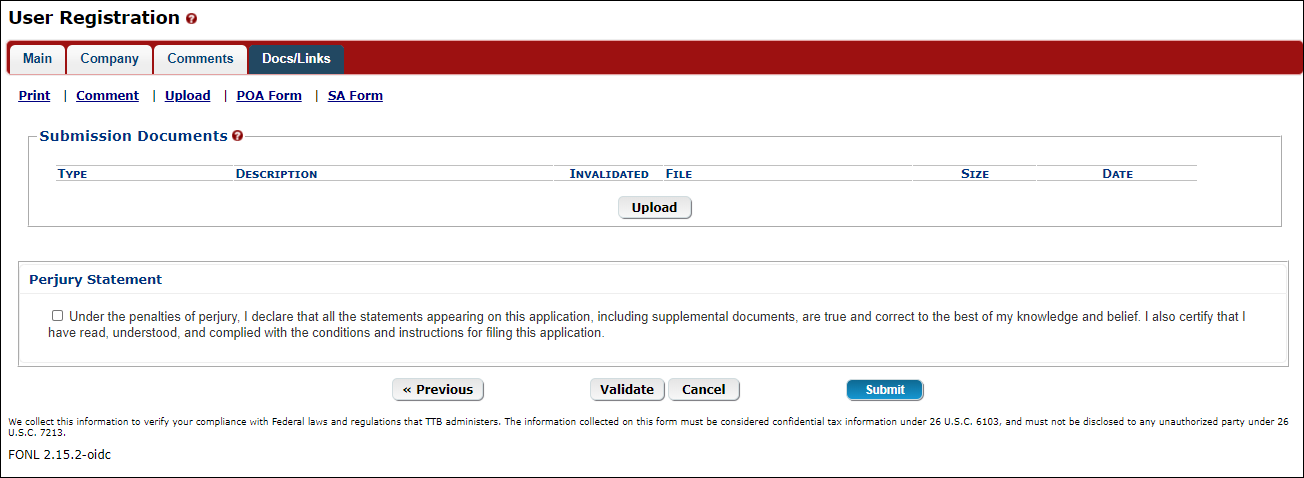
- If you need to add attachments on the “Docs/Links” tab, select “Upload” and the Attachment modal window will appear. (As a reminder, if you are registering for the first time as a Submitter on behalf of a nonbeverage company, unless you are an owner, you will need to upload a signed Power of Attorney or Signing Authority form here.)
- Enter a description for the file in the Description field.
- Select attachment type from the Type drop down.
Note: You must select the correct type. For example, if you selected “Signing Authority” as the Signature Authorization in the Company modal window, you must select “Signing Authority” from the Type drop-down list. If you selected “Power of Attorney” as the Signature Authorization in the Company modal window, you must select “Power of Attorney” from the Type drop-down list.
Browse and select your file; select “OK.”
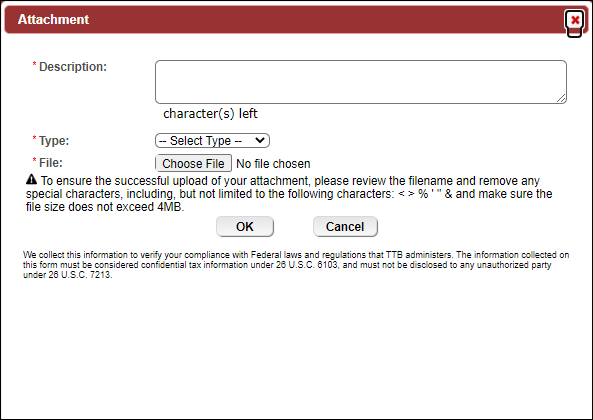
- Enter a description for the file in the Description field.
- Verify that your attachment was added on the main Docs/Links tab.
- Notes:
- Select the “edit” link to update the attachment information.
Select the checkbox next to the attachment and select the “Delete” button to delete the attachment.
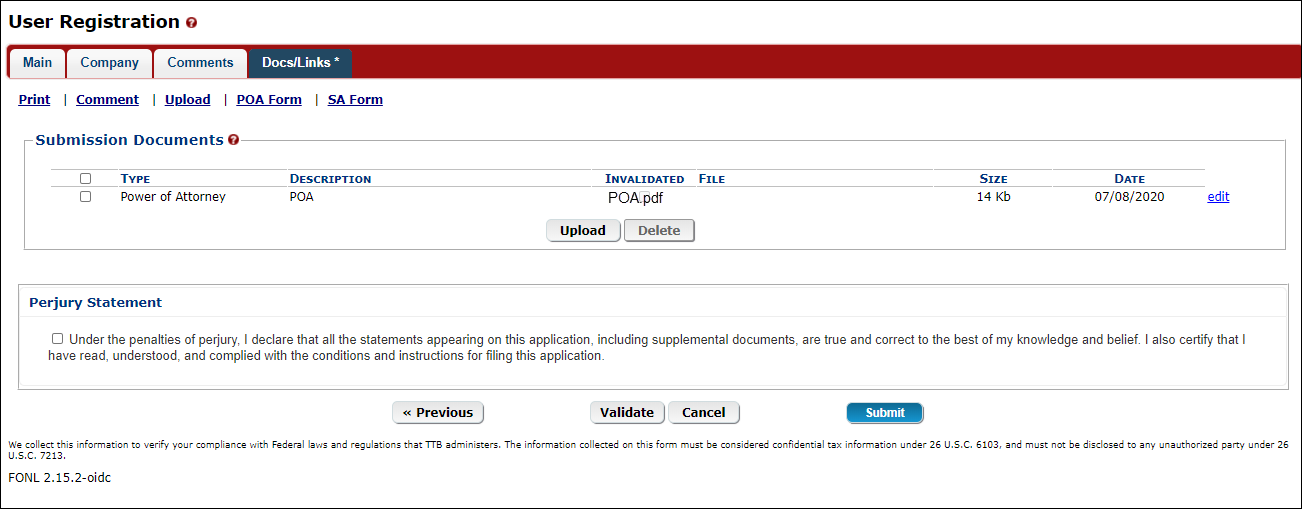
- Select the “edit” link to update the attachment information.
Select the “Validate” button.

Red error messages display indicating any issues found with the user registration submission. Correct any errors and repeat this step until the user registration submission is successfully validated.

Alternatively, a green message displays indicating no issues were found with the user registration submission.

Select the “Perjury Statement” checkbox at the bottom of the tab to acknowledge you have read, understood, and complied with instructions for filing the application.

Select the “Submit” button. The Submission Confirmation page displays with a submission ID and the modify user registration submission is successfully submitted.

- TTB will review your registration and will contact you by email when your account has been set up (you will need to activate it once you receive the email) or if additional information is needed. Please keep a keep a record of the submission ID for tracking purposes.
See the latest processing times for user registration submissions.
Page last reviewed: January 15, 2021
Page last updated: June 16, 2021
Maintained by: TTB Help Desk / OCIO
Last updated: October 27, 2025