

The .gov means it's official.
Federal government websites often end in .gov or .mil. Before sharing sensitive information, make sure you're on a federal government site.

The site is secure.
The https:// ensures that you are connecting to the official website and that any information you provide is encrypted and transmitted securely.

Permits Online: Correcting Application Errors and Omissions
Note: This page contains instructions and screenshots so you can see what to expect when using Permits Online, our online method of applying for a TTB permit, registration, or notice.
TTB performs a thorough review of applications, and if we find we need additional information or documents, or if we see something that needs to be corrected, we will change the status of the application to “Correct Application” or “Corrections Requested”. We then send a system generated email to the person who submitted the application (i.e., the application contact) with instructions on how to view and supply the information or documents we need or how to view the requested corrections and make them to your application.
Step-by-step: Correcting Errors and Omissions if your application has been placed in a “Correct Application” status:
You will receive a system generated email with detailed steps on how to access the application to make the necessary corrections. (See sample email below) Once you have corrected your application, it will be returned to the same position as it was originally received.
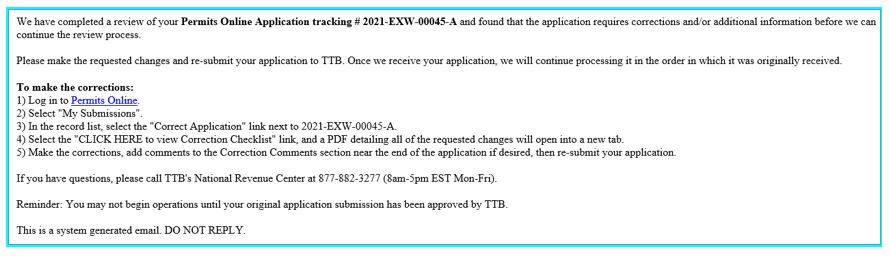
To locate the application you need to correct, follow the steps below.
- Log in to Permits Online.
Click the ‘My Submissions’ button located at the top of the screen.
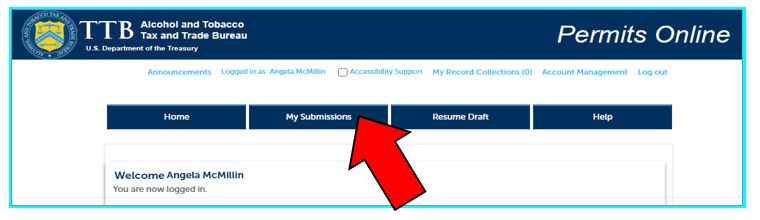
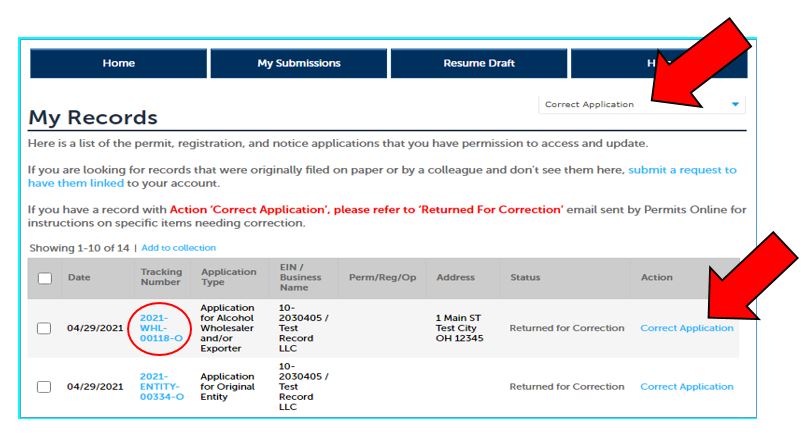
- Change the filter to “Correct application” to only display your applications TTB has returned for correction.
Click the “Correct Application” link for the application tracking number you need to correct.
- You will then be directed to your returned application. Select the ‘CLICK HERE to view Correction Checklist’ link located in Step 1 of your application. The needed corrections will open in a separate window. Follow the instructions provided in this checklist to navigate to the different sections of the application.
Click the ‘Continue’ button at the bottom of each screen to navigate to each page of the application. If no corrections are needed on a page you may select ‘Continue’ to get to the sections in which the corrections are requested.

NOTE: You will not be able to ‘Save and Resume’ after you begin making the corrections. If you click the ‘Save and Resume’ button located at the bottom of each page, the system will not save any of the corrections you have made.
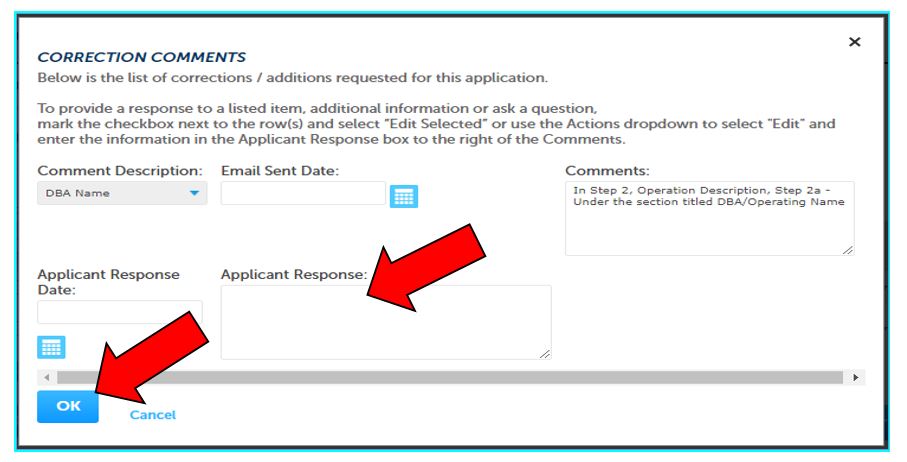
Should you need to ask a question, provide additional information or respond to item in the Correction Checklist, a CORRECTION COMMENTS table can be utilized near the end of the application for this purpose. You may provide this information in the Applicant Response column by:
Mark the box next to the Comment Description and click the ‘Edit Selected’ button…
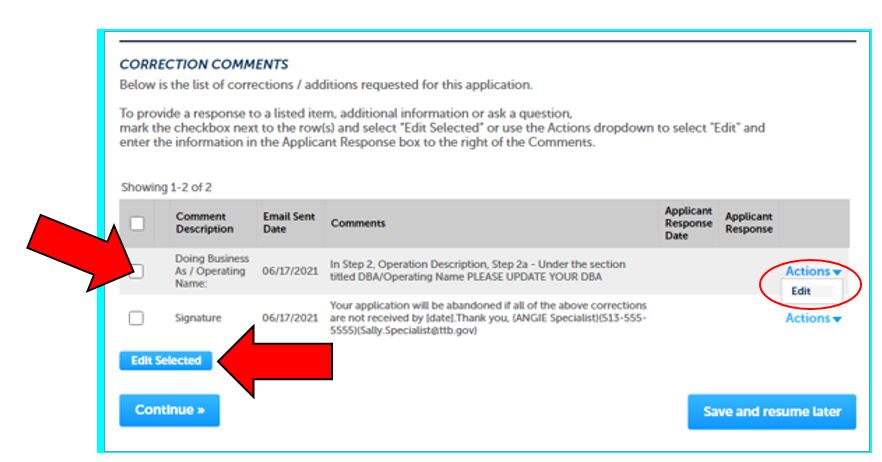
OR click the ACTIONS link and select ‘Edit’. Provide the requested information or question in the Applicant Response field (shown below). Click ‘OK’.
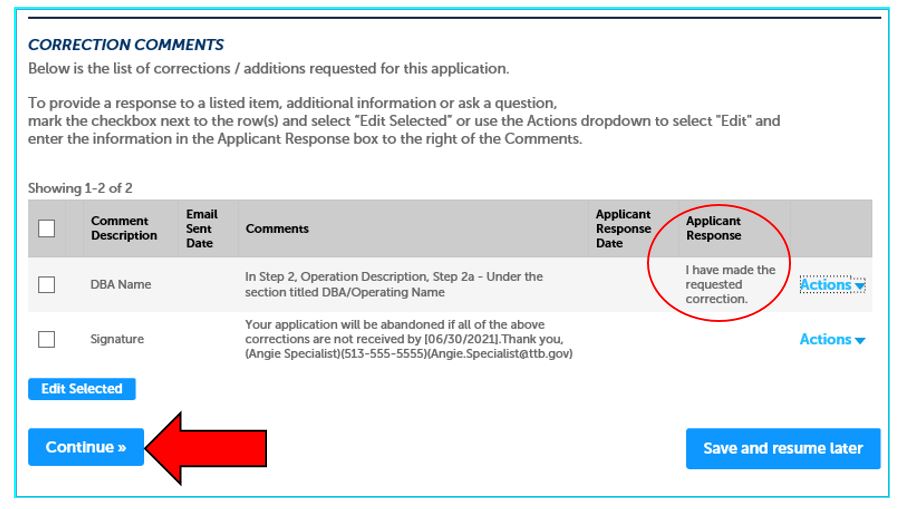
You will notice your response is recorded in the Applicant Response column (see below).
Click the ‘Continue’ button.
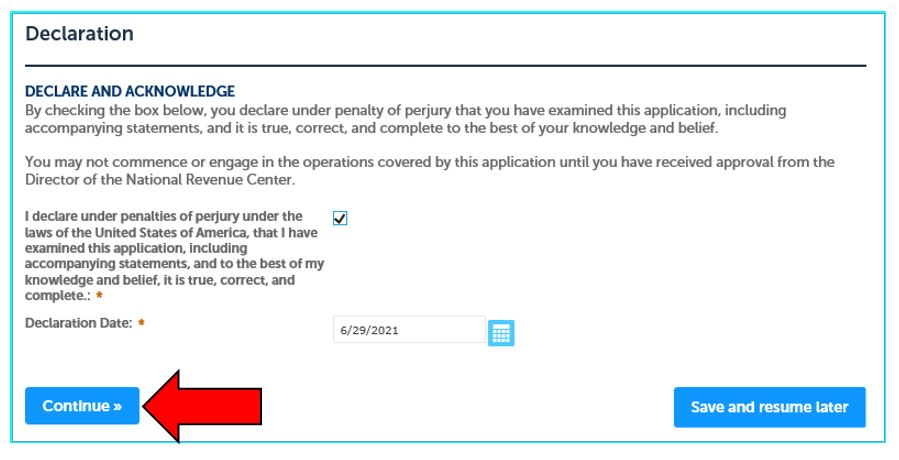
- You will then be asked to mark the DECLARE AND ACKNOWLEDGE box. The Declaration Date field will be completed for you once you mark this box.
Click the ‘Continue’ button.
- You will then be directed to a Review screen which is a summary of the information you provided along with the updates you have made. Click the ‘Continue’ button either at the top of the page or at the bottom.
You will receive a system generated email notifying you TTB has received your updated application. See sample email below.
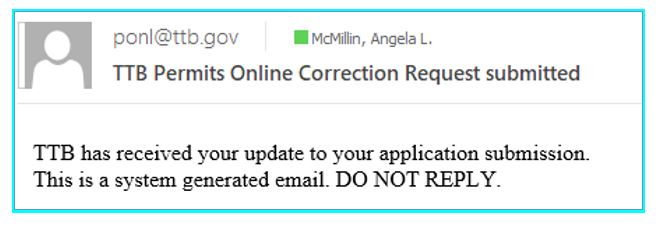
You will also receive the following Submission Confirmation message.

Step-by-step: Correcting Errors and Omissions if your application has been placed in a “Corrections Requested” status:
TTB will use this status if the Specialist needs minimal corrections or only needs additional documentation. If corrections/additions are needed, TTB will make those for you after you provide the information. If you have been requested to upload additional documentation you may follow the instructions in your “Corrections Requested” email. See the step-by-step instructions for additional information [add link to that part of the page]
Typically, you’ll have 15 calendar days to supply the information we request. If you need additional time, be sure to let the TTB Specialist know. If we don’t hear from you or don’t receive all the information we need in order to determine if the application can be approved, we’ll change the status to “Abandoned,” and if you want to proceed later you’ll have to start over from scratch.
Step-by-step: Correcting Errors and Omissions
Login to Permits Online, and from the homepage select the "My Submissions" tab to find your application.
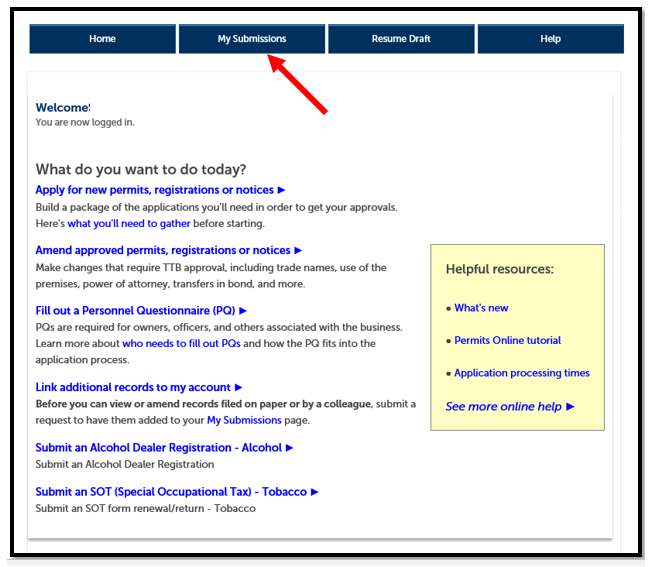
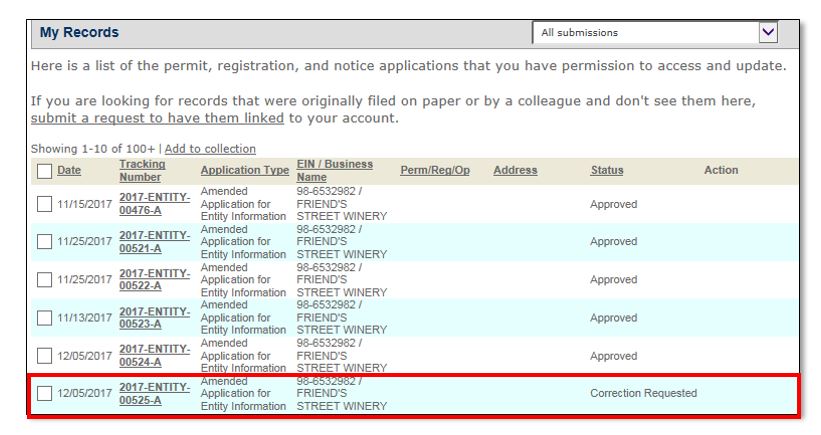
Select the application tracking number of the application you need to correct. The application status will be “Correction Requested.”
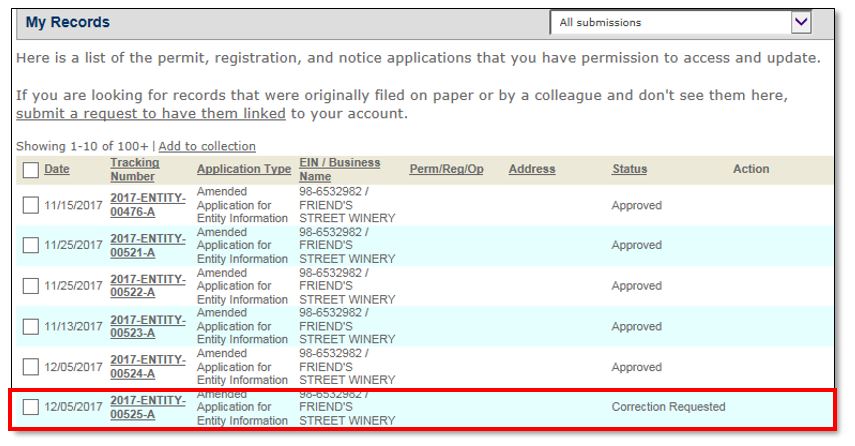
Select the arrow next to “Processing History.”
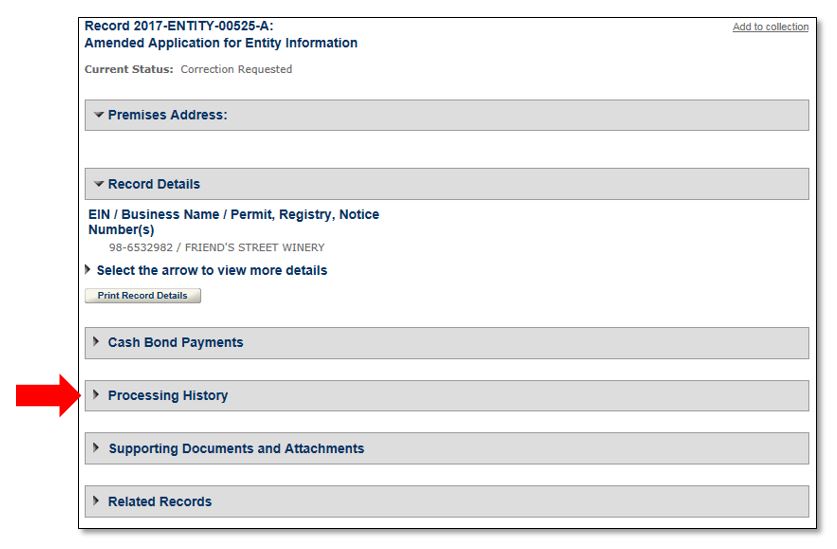
Select the arrow next to either “Entity Review,” "Initial Review," "Specialist Review," or "Manager Disposition," whichever is displaying for this application.

Select the plus sign (+) box to view the TTB comments regarding your application.
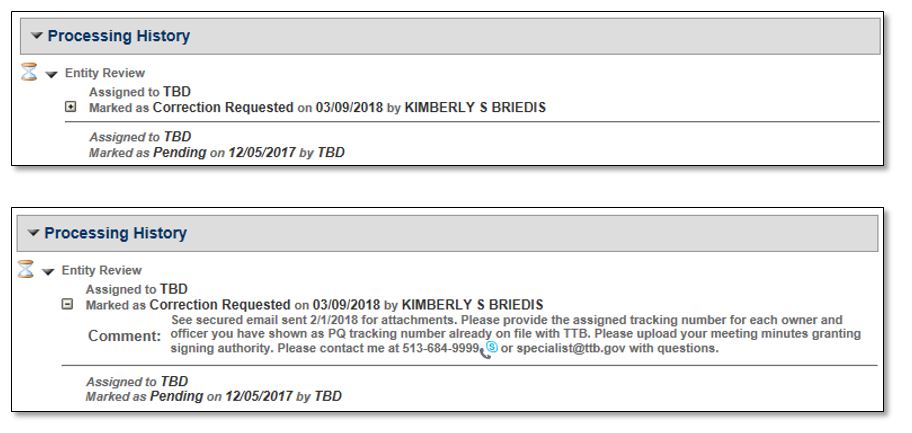
The assigned TTB Specialist will indicate in the message how you should respond with the corrected/additional information.
If TTB requests additional supporting documents, you may upload them to your application in Permits Online.
To attach documents to a previously-submitted application, first select the tracking number for the application on the My Submissions screen.
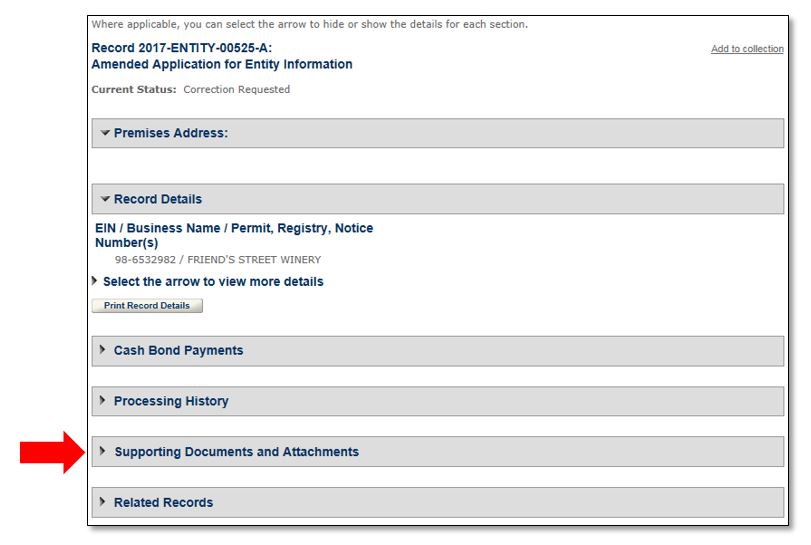
Scroll down to the “Supporting Documents and Attachments” section. Click the arrow to expand the section.
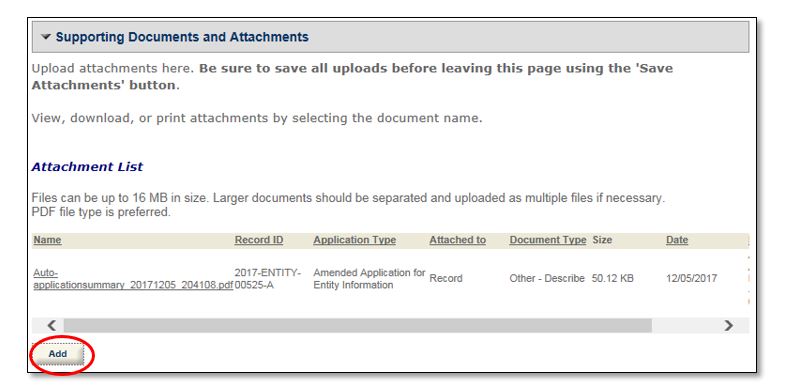
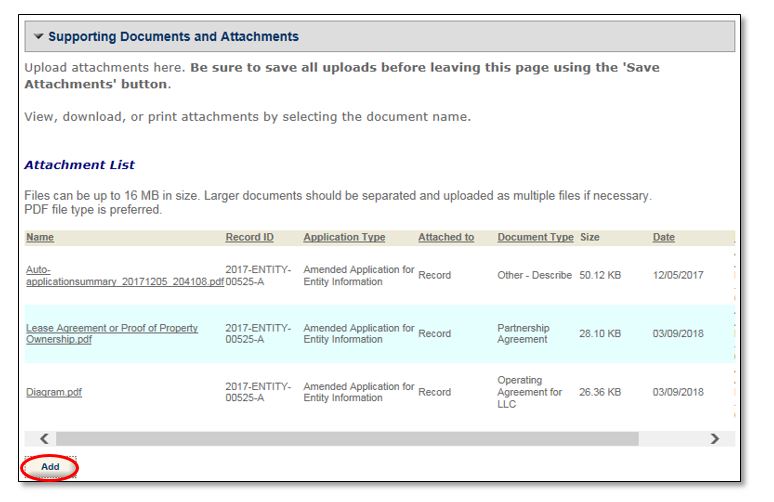
Select the “Add” button below the Attachment List.
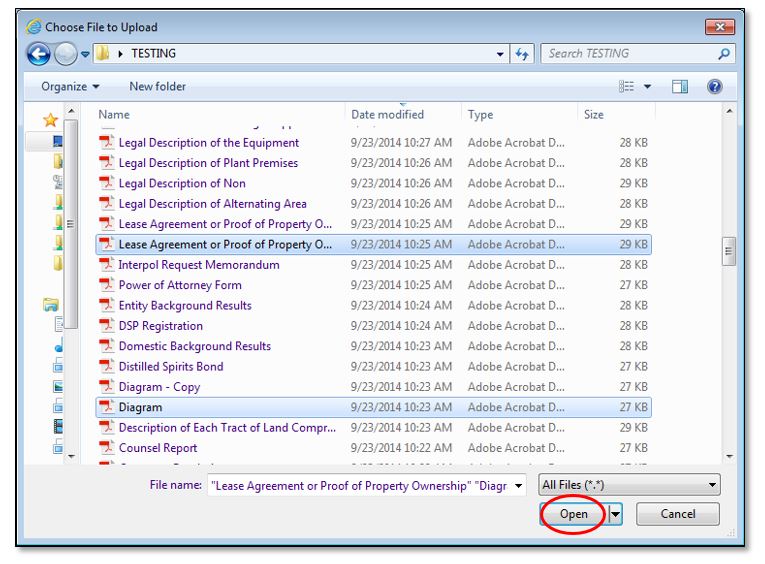
A browser window will open. You may select one or multiple documents to upload. Select “Open.”
For each document you are uploading, select a document type from the dropdown and enter a description, and then select “Save Attachments.”
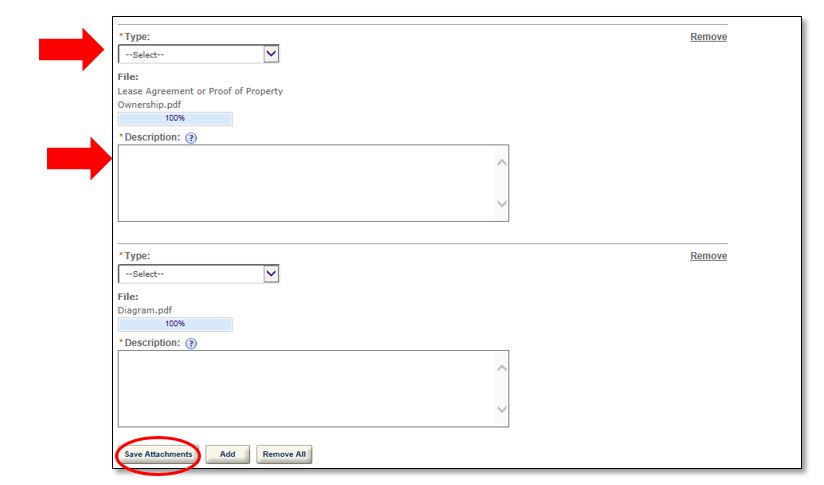
A message will display once the document(s) have successfully uploaded.

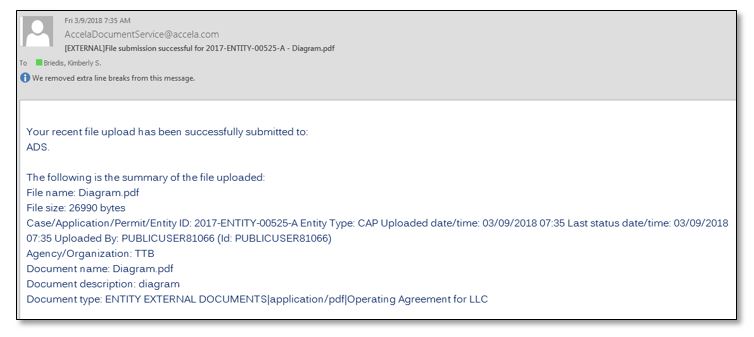
You will receive an individual email notification for each document you upload.
Each document you have uploaded will appear in the Attachment List. If you need to upload additional documents, click the “Add” button, and follow these steps again.
Go back to the Permits Online Help Center
Last updated: July 2, 2025
Maintained by: National Revenue Center