

The .gov means it's official.
Federal government websites often end in .gov or .mil. Before sharing sensitive information, make sure you're on a federal government site.

The site is secure.
The https:// ensures that you are connecting to the official website and that any information you provide is encrypted and transmitted securely.

Designate Key Contacts
Note: This page contains instructions and screenshots so you can see what to expect when using Permits Online, our online method of applying for a TTB permit, registration, or notice.
Permits Online requires that you designate at least one owner or officer of the business as a key contact within the "Signing Authority" section of each new and amended entity application. Each entity must have at least one, but may have multiple key contacts.
The purpose of having a key contact is to ensure that there is a person at the TTB-regulated business who has access to all Permits Online applications and records for their company, rather than just the application contact, who may or may not have a long-term relationship with the permitted entity.
A Key Contact must be an officer or owner of the business entity and must be authorized to sign and act on behalf of the entity by name (not just by title).
If a person designated as a key contact does not already have a Permits Online account, one will be set up for them automatically when the application package is submitted. Once the account is activated, key contacts have access to all entity and commodity operations applications and records on file for their entity.
Review Existing Key Contact(s)
Log in to Permits Online
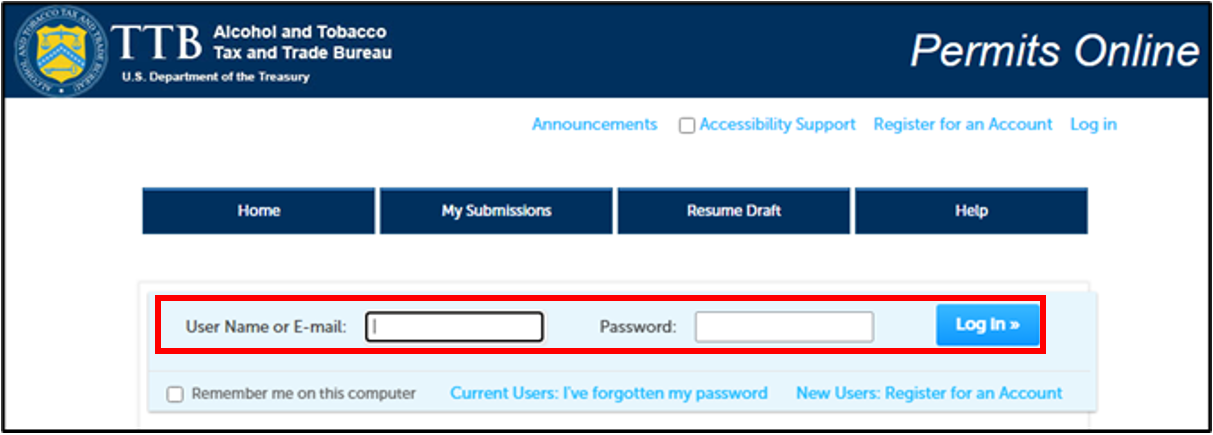
Access login to Permits Online https://ttbonline.gov/permitsonline/Default.aspx
Enter your Username.
Enter your Password.
Select Log in button.
The Welcome screen will be displayed.
Access Your Records
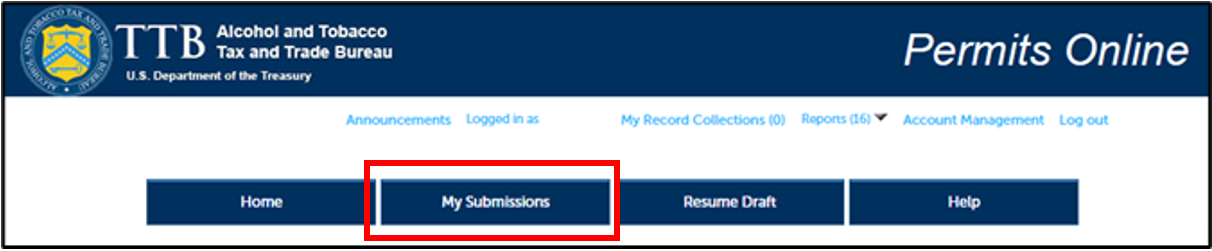
Select My Submission button at the top of the screen.
The My Records screen will be displayed.
Locate the Entity Record to Review
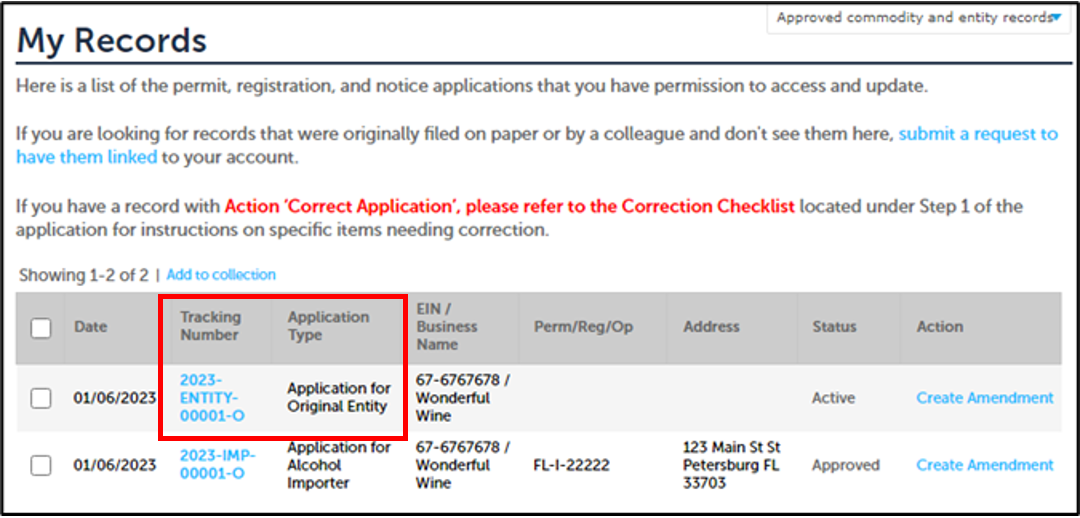
Filter the list of records by selecting “Approved commodity and entity records”
from the drop down on the upper right of the My Records table.
Select the Tracking Number associated with the Active Application for Original Entity record for your business.
Information about the selected Entity will be displayed.
Verify Key Contact for the Entity Selected
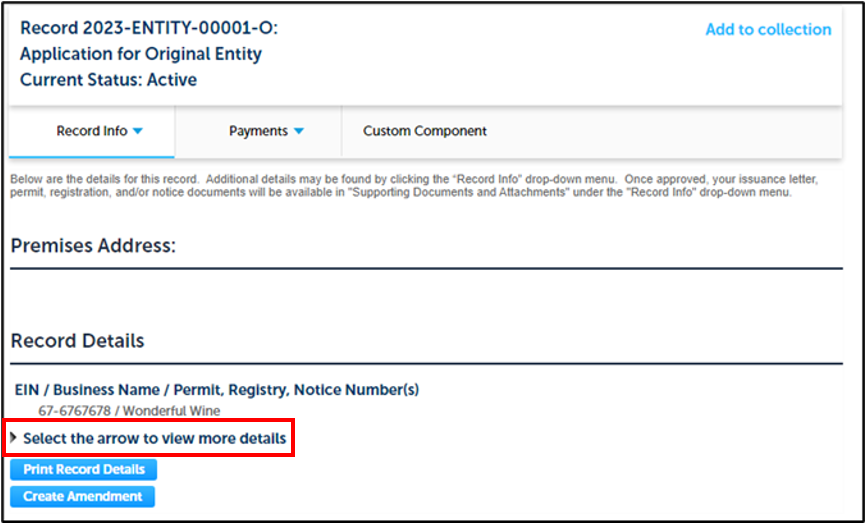
In the Record Details section, select the View More Details arrow at the bottom of the screen
in the Record Details section.
More information options will be displayed.
Access Key Contact Information
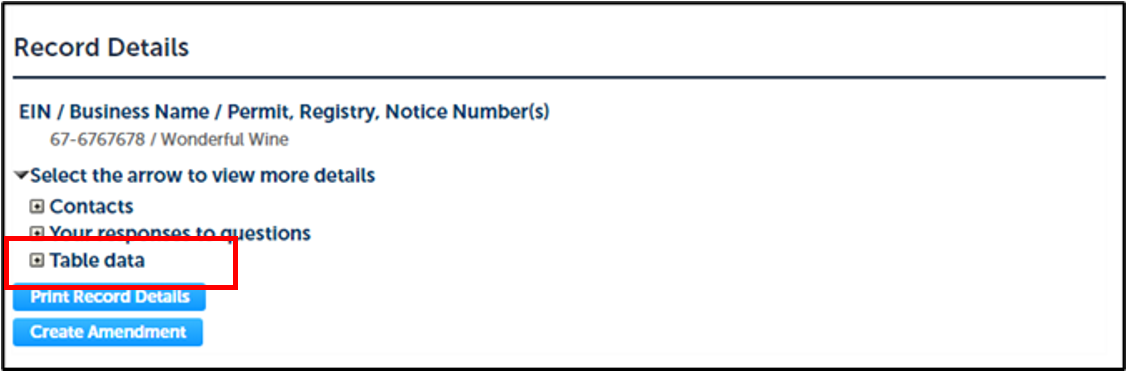
In the expanded options, select the Table data plus (+) sign.
Individuals with signing authority, along with the source of their authority and whether or not they are a key contact for TTB will be displayed.
Review Key Contact Information
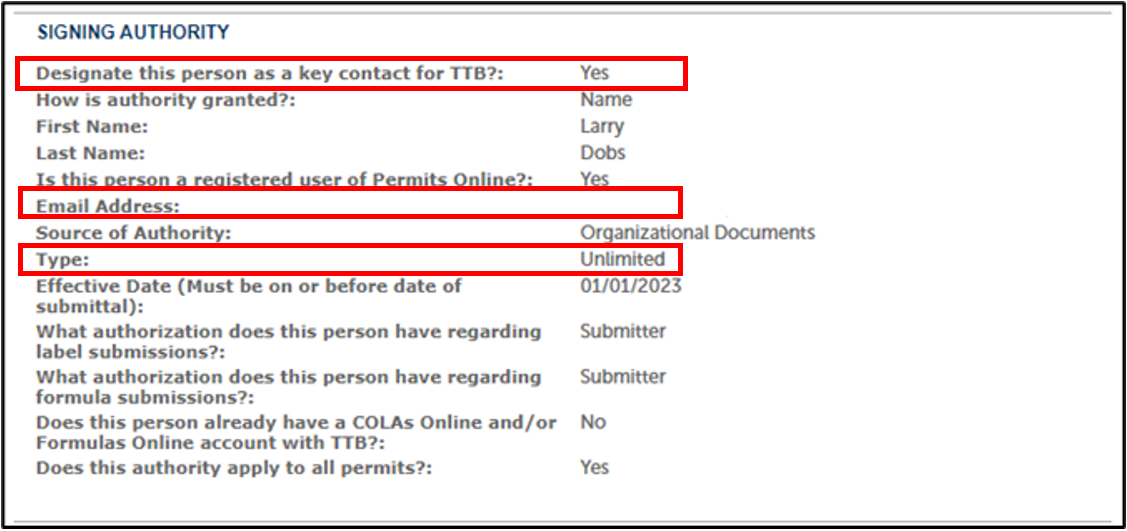

Each Signing Authority includes a key contact designation with a Yes or No and a Type of Limited or Unlimited. Unlimited Signing Authorities are individuals who have been authorized to act on behalf of the entity for all actions and business/permit numbers. Limited Signing Authorities are authorized to act on behalf of the entity for a limited set of actions or business/permit numbers.
Scroll to the Signing Authority section in Table Data.
Confirm:
- A minimum of one (1) Key Contact exists
- The key contact is a current owner or officer
- A minimum of one (1) Key Contact has Unlimited authority (the Type field is marked as Unlimited)
- An accurate email address is included for the Key Contact
If Key Contact information is accurate, no further action is required.
If the information needs to be updated, an amendment must be made to the Permit.
(1) Select the Create Amendment button at the bottom of the page and continue to Step 4 of
the Update Key Contact procedure.
OR
(2) Start at Step 1 of the Update Key Contact procedure.
Update Key Contact
To update Key Contact(s) information or add new Key Contacts, you will need to create an Amendment to the Permit.
Based on the type of change you are making, the Permits Online Amendment may include a list of required supporting documentation. If you are adding a new signing authority, you may be required to provide organizational documents, amended organizational documents, meeting minutes, or the TTB F 5100.1 - Signing Authority for Corporate or LLC Officials form.
Log in to Permits Online
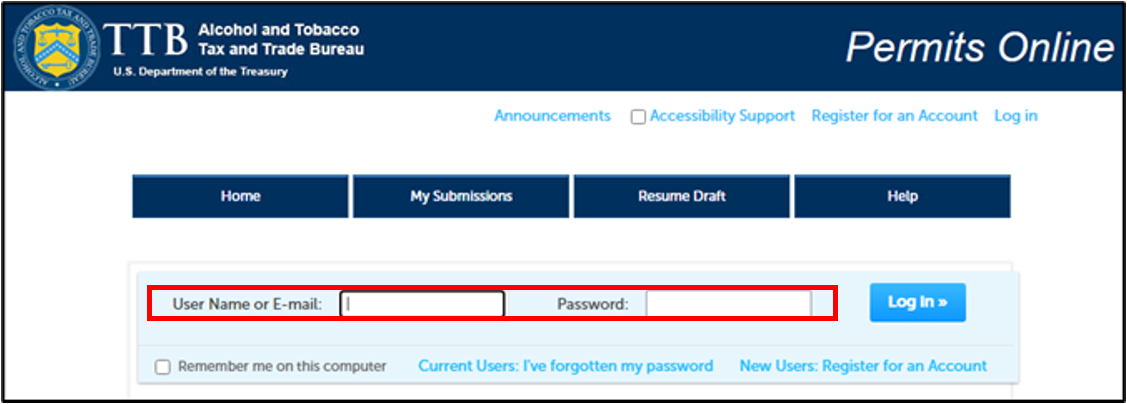
Access login to Permits Online https://ttbonline.gov/permitsonline/Default.aspx
Enter your Username.
Enter your Password.
Select Log in button.
The Welcome screen will be displayed.
Access Amendment creation
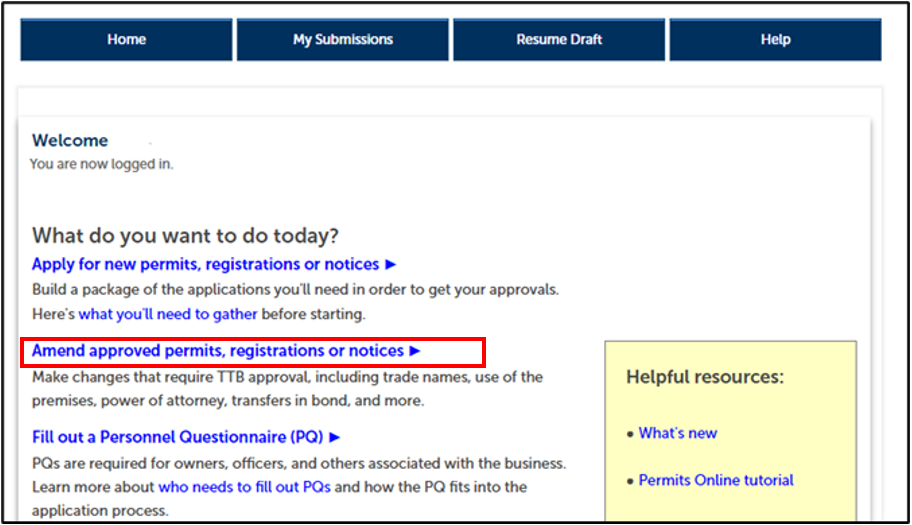
Select the Amend approved permits, registrations or notices link on the Home tab.
The My Records screen will be displayed.
Locate the Entity Record to Update
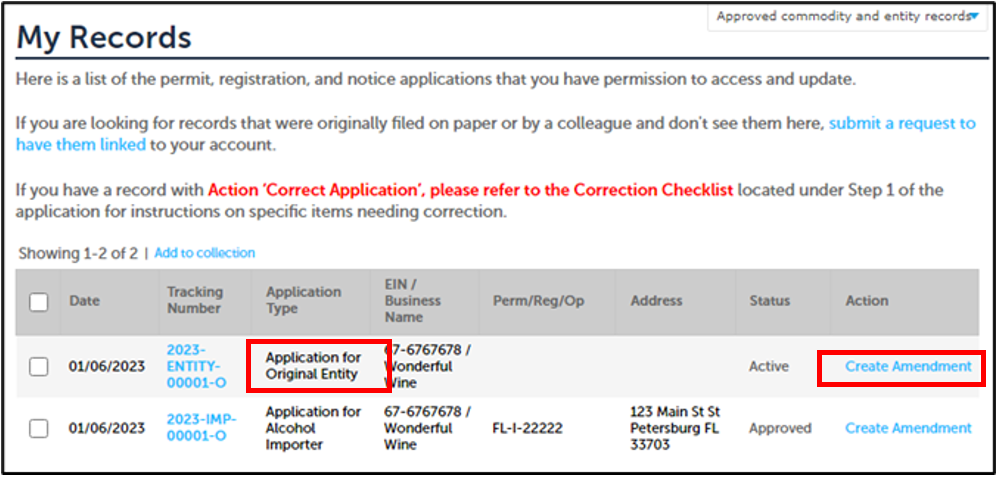
Filter the list of records by selecting “Approved commodity and entity records”
from the drop down on the upper right of the My Records table.
Select the Create Amendment link from the Action column for the Application for Original Entity record for your business.
A short questionnaire will display to gather more information on the changes you would like to make in the amendment.
Identify the Type of Change
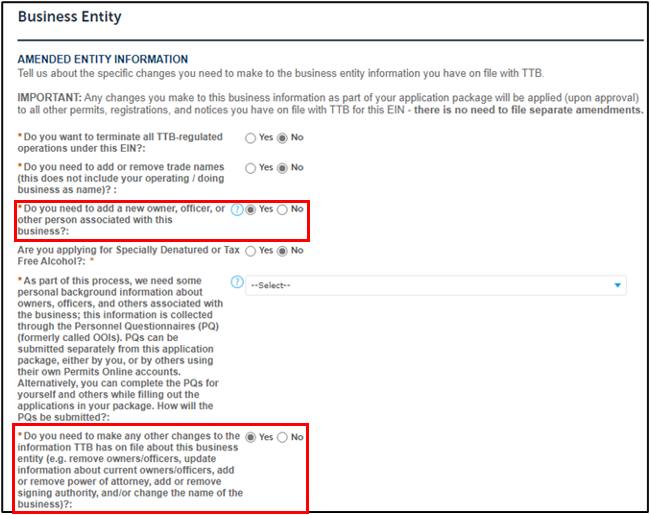
(1) To add a new owner or officer as a Signing Authority and Key Contact:
Select Yes next to “Do you need to add a new owner, officer, or other person associated with this business?”.
Answer any additional questions that display after selecting Yes.
OR
(2) To update email address or add an existing owner or officer as a Key Contact:
Select Yes next to “Do you need to make any other changes to the information TTB has on file about this entity?”.
A summary of the types of changes you would like to make will be displayed in a confirmation window.
Confirm the Amendment Creation Answers
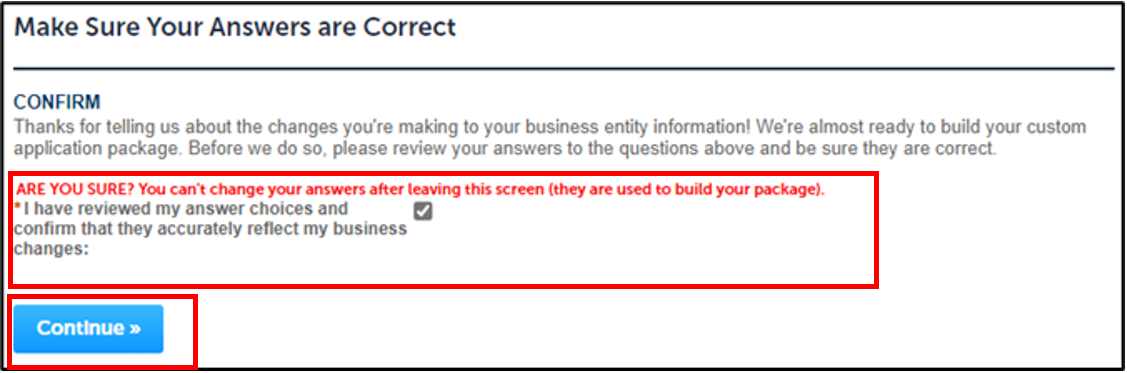
Answers for the amendment reasons cannot be changed after this point. If changes need to be made to your responses, you will need to create a new amendment.
Review your choices and select the checkbox confirming that you have reviewed your answers.
Select the Continue button.
Based upon the types of changes selected, different forms will be displayed in the Amendment wizard.
Application screen: Step 2: Review page will be displayed with a summary of responses.
Continue to the Application Package
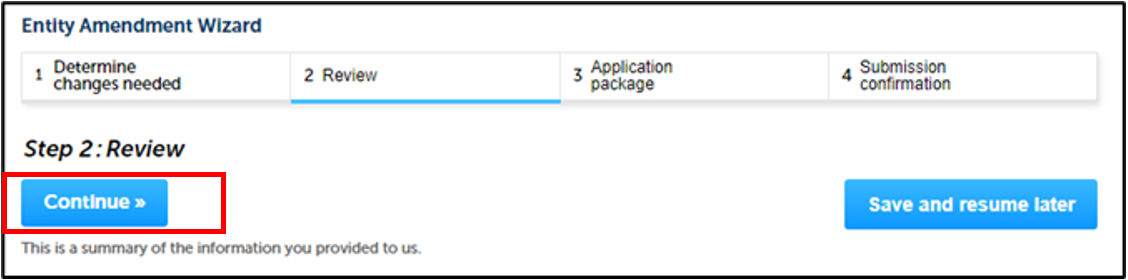
Select the Continue button on the Review page.
Based upon the types of changes selected, different forms will be displayed in the Amendment wizard.
Note: Once you complete the Amendment form you will Review the package of information needed for that Amendment and then Submit the Amendment.
Start the Application Package
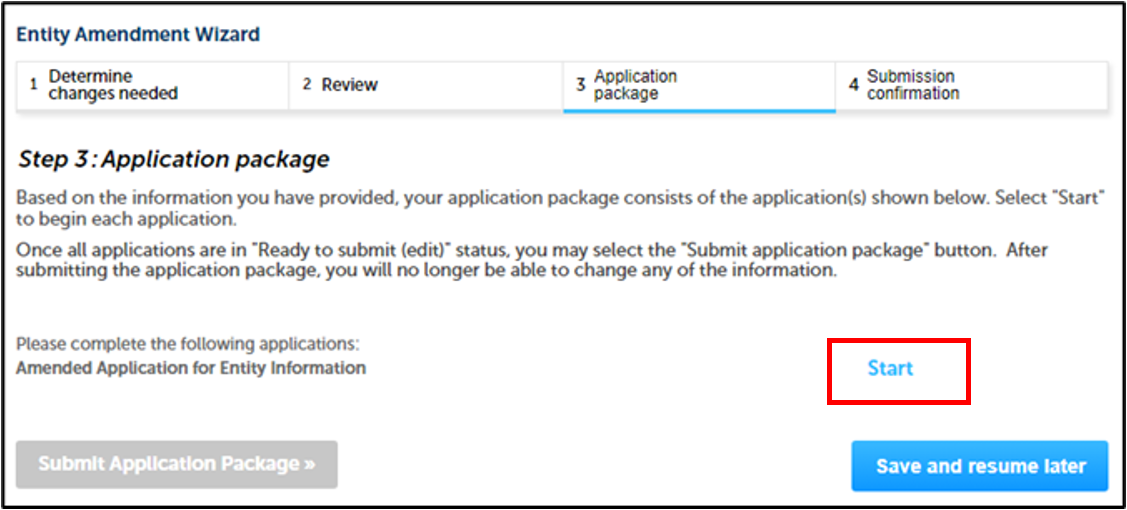
Select the Start link to open the application package that was created for your amendment.
The amendment package will open to Step 1: Select Amendment.
Review Contact Information
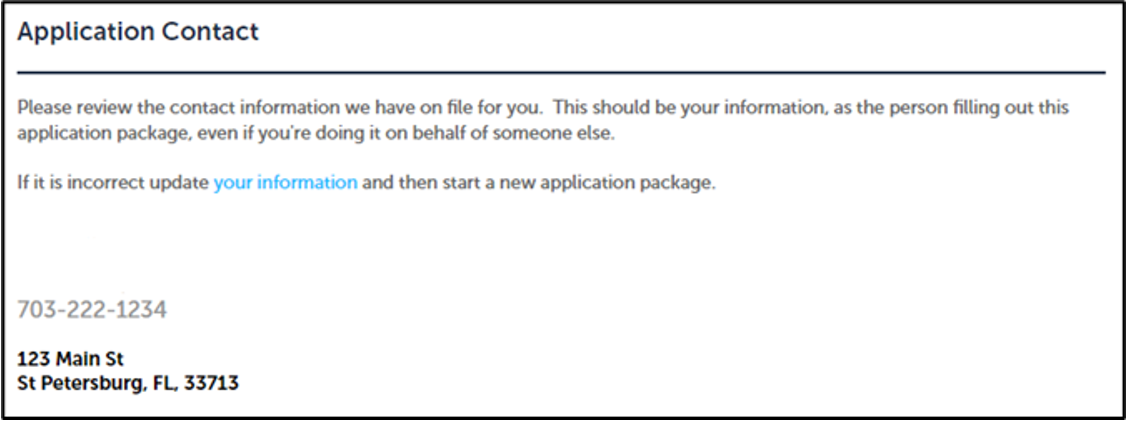
Confirm your Contact Information is accurate.
This should display your information as the contact for the amendment,
even if you are making the change on behalf of someone else.
Reason for Amendment will be displayed.
Complete Reasons for the Amendment
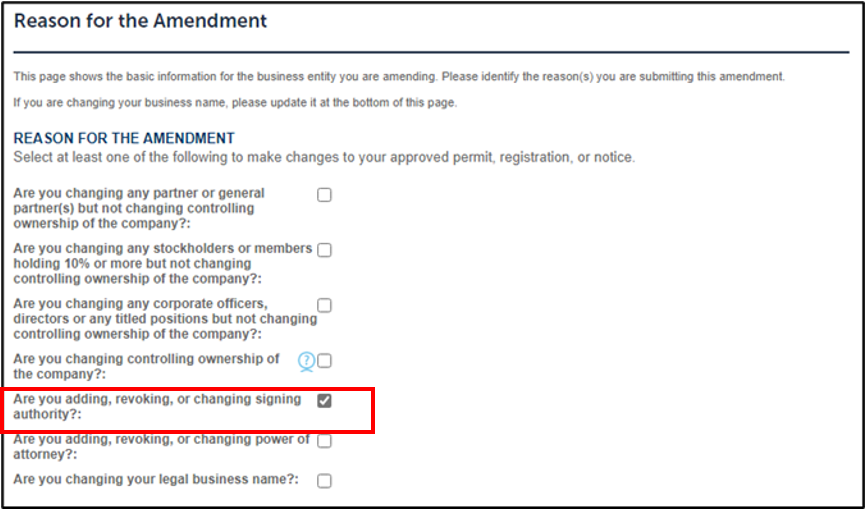
Select Are you adding, revoking, or changing signing authority? and any other
applicable Reasons that may apply if you are adding new owners or officers.
Select the Continue button.
The Entity Information will be displayed.
Review Entity information
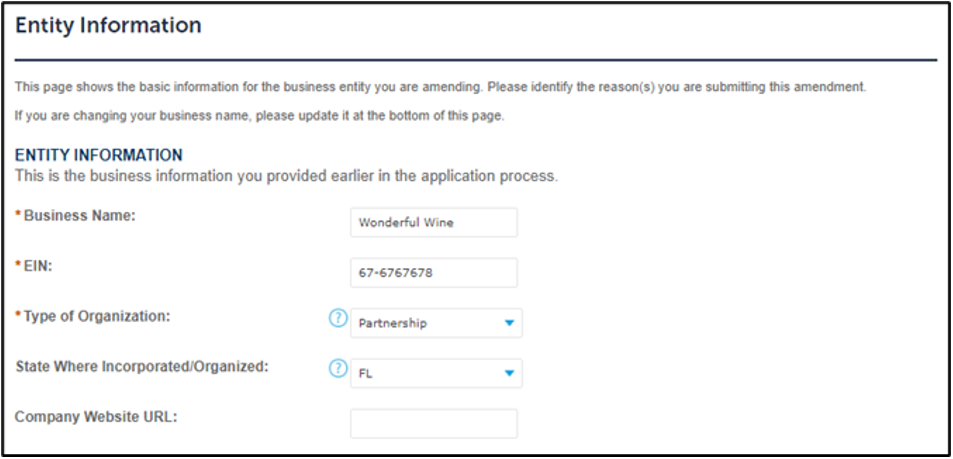
Review and update the pre-filled entity information.
Select the Continue button.
IMPORTANT
WARNING
Warning: DO NOT use Save and Resume later link. Changes must be completed and submitted in one session or they may not be saved.
A table of the officers and owners for the entity will be displayed.
Add New Key Contact information (If Applicable)
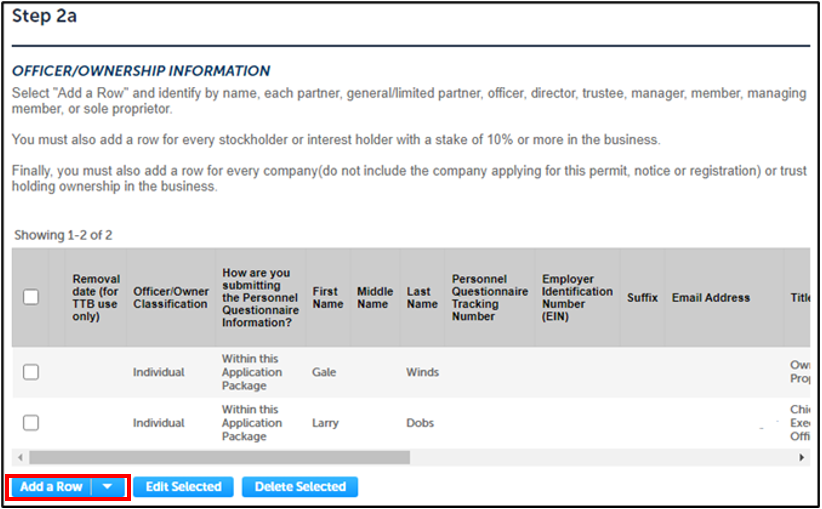
If no new officers or owners need to be added, skip to the Upload Any Required Documentation step.
If new owners or officers need to be added to the entity, add them to the Officer/Ownership Information table, then the Signing Authority Table.
To Add New Officers or Owners:
- Select the Add a Row button
- Enter all Required(*) Information, including an email address
Select the OK button.
The Officer/Ownership Information table will display all changes.
Add New Officer or Owner to the Signing Authority Table
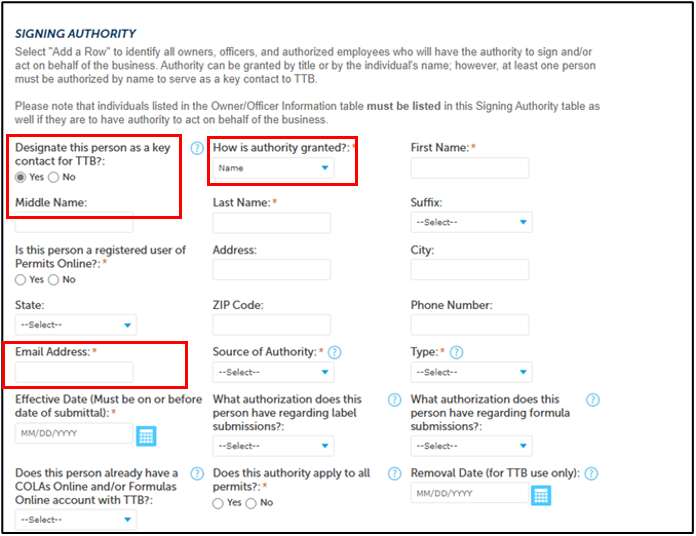
If an Owner or Officer needs to be added as a new Signing Authority:
- Select Add a Row for the Signing Authority table.
- Select Yes for “Designate this person as a key contact for TTB?”.
- Select Name from the How is Signing Authority granted dropdown.
- Enter an accurate email address.
- Enter all other required(*) information.
Select the OK button.
The Signing Authority table will display all changes.
Designate an Existing Individual with Signing Authority as Key Contact
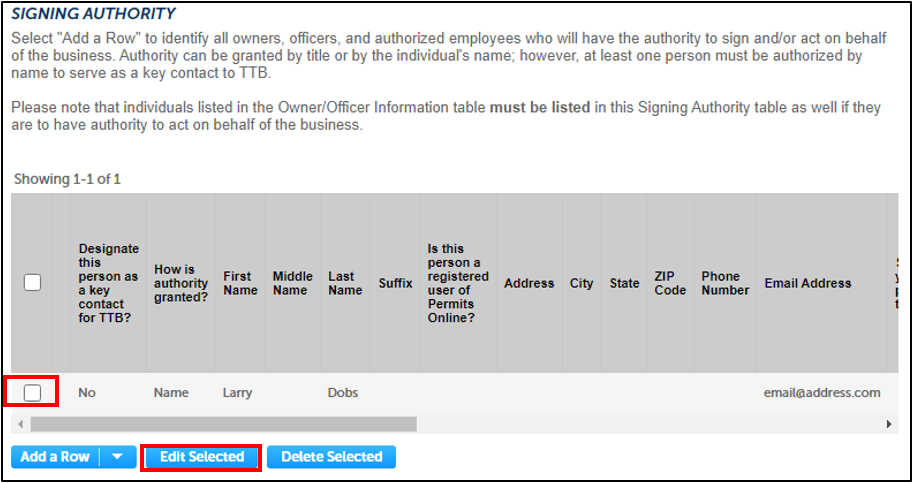
To Edit the information for existing Signing Authorities:
- Scroll down to the Signing Authority section
- Select the checkbox next to the row(s) for each individual whose key contact designation or other contact information you would like to change
- Select the Edit Selected button
- Confirm or enter an accurate email address
- Select Yes for “Designate this person as a key contact for TTB?”
Select the OK button.
The Signing Authority table will display all changes.
Upload any required documentation
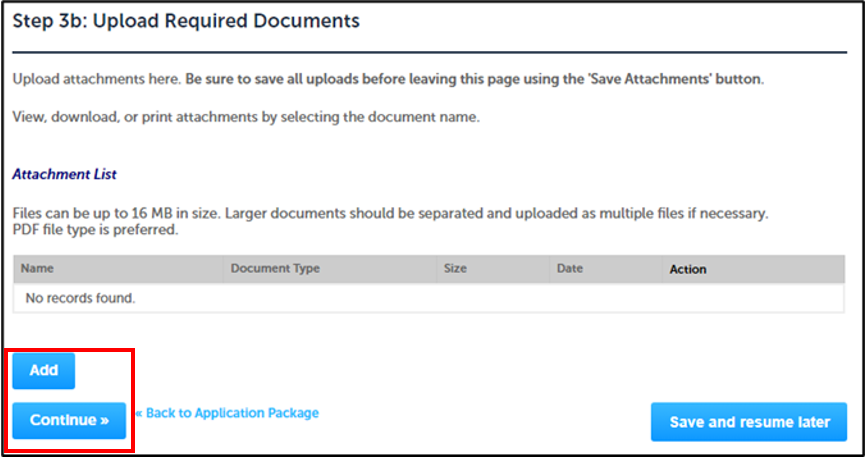
These requirements are based on the types of changes you selected for your amendment.
Follow any instructions to upload specific documents.
Note: Documentation is not required when designating an existing individual with Signing Authority as a Key Contact.
Documentation IS required when you are adding a new owner/officer or signing authority and designating as a key contact.
Select the Continue button.
The Step 4: Declare and Acknowledge page will display.
Complete an Acknowledgement of Amendment Selections
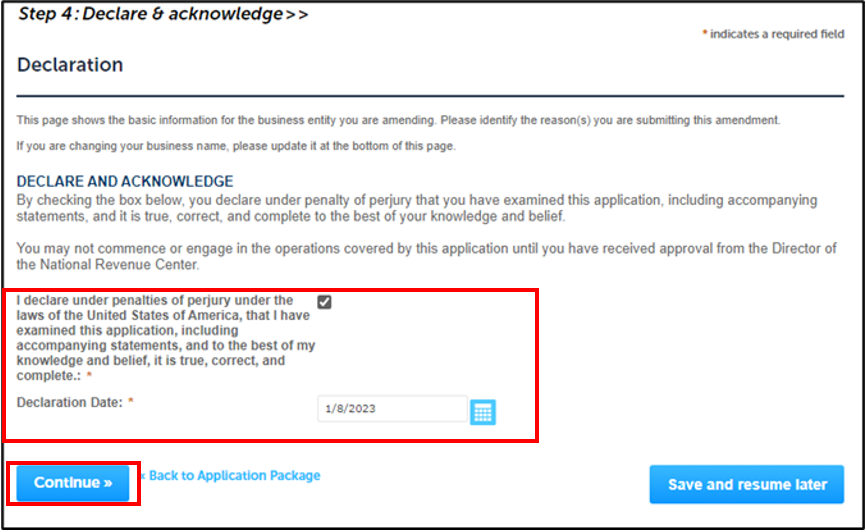
Check the checkbox to certify the information you have entered is accurate.
Enter Today’s Date for your Declaration Date.
Select the Continue button.
The Step 5: Review page will display.
Review All Changes in the Amendment Package
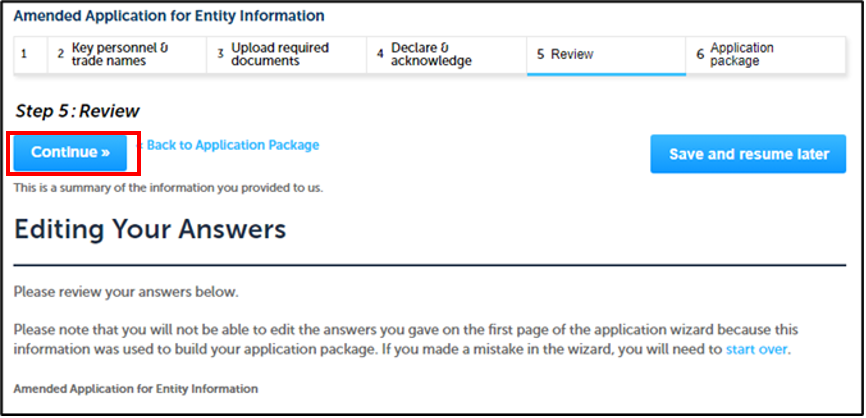
Review all the answers you submitted to ensure they are correct.
Select the Continue button.
Your application package is ready for submission!
The Step 4 Submission Confirmation will be display.
Submit the Application Package
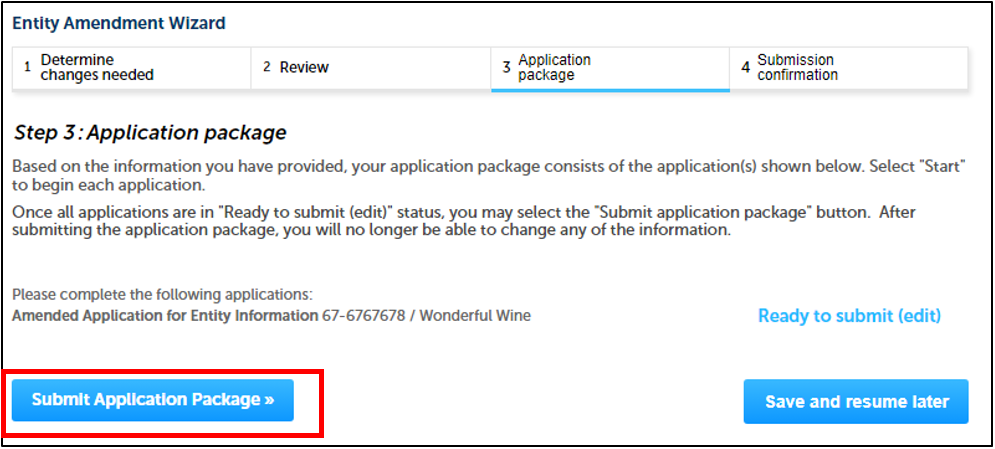
Once the Amendment is complete and accurate, submit the Amendment Package for review.
Select the Submit Application Package button.
A success message displays on the screen.
Review Successful Submission
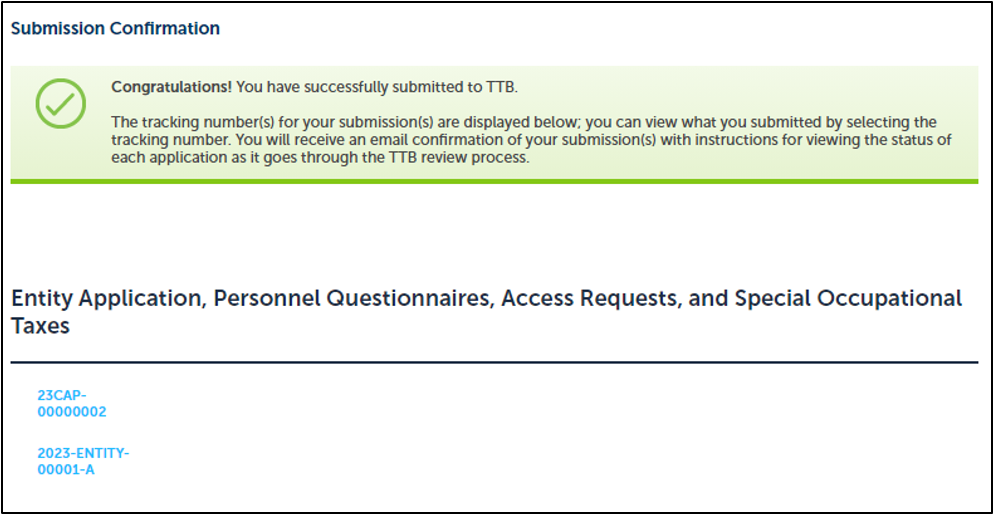
Tracking details of your submission will display and a confirmation email will be sent.
You will also receive a confirmation email when the amendment application is approved.
Review the Status of the Application
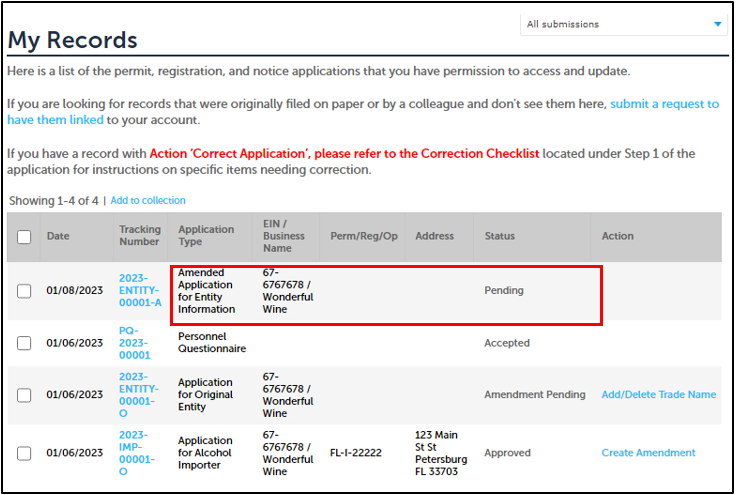
Select the My Submission button at top of screen.
On the My Record screen, see the Status column.
Go back to the Permits Online Help Center
IMPORTANT
Permits Online makes it easy for you to electronically apply for and update the permit, registration, or notice you need to operate a TTB-regulated business. Once you have registered to use Permits Online, just log in and follow the instructions and prompts for submitting your application package. There is no fee to apply.
Last updated: July 2, 2025
Maintained by: National Revenue Center